Ads
macOS Icon Pack for Windows 11 and Windows 10
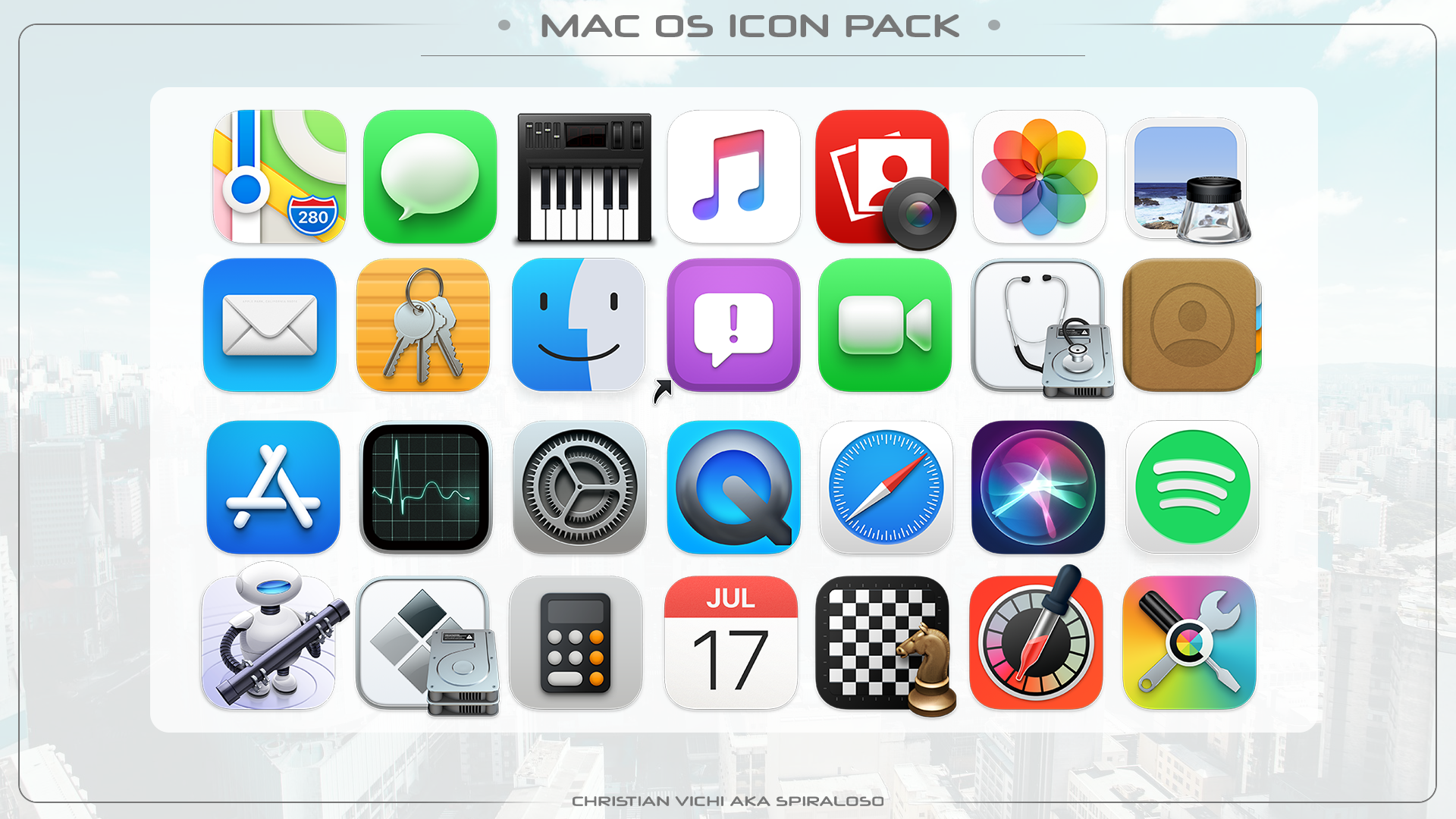
Give your Windows desktop an Apple-inspired look with this macOS icon pack for Windows 11 and Windows 10. The download includes icons in ICO and PNG formats. Use ICO files to customize supported Windows desktop, folder, and drive icons; PNG files can be used in compatible apps or converted when needed.
Preview the macOS-style icons below, then download the ZIP archive and follow the installation guide to apply the icons to your Windows setup.
How to Install the macOS Icons
- Download the ZIP archive using the download button below, then extract it with 7-Zip or another archive utility.
- Choose the icon format you need. Windows uses ICO files for its built-in desktop and folder icon settings. PNG files may need to be converted for those settings.
- Desktop icons: Open Settings and go to Personalization, then Themes. Open Desktop icon settings, select an icon such as This PC or Recycle Bin, choose Change Icon, and browse to the ICO file.
- Folder icons: Right-click a folder, select Properties, open the Customize tab, and choose Change Icon. Browse to the ICO file and apply the change.
- Drive icons: The pack’s ICO files can also be used for drive-icon customization. This may require an autorun.inf file in the drive’s root directory; follow Windows security and removable-drive restrictions, and use the correct ICO filename.
Download macOS Icon Pack
Use the button below to download the macOS icon pack ZIP archive. Extract the files before selecting individual icons in Windows.
Ads
Share