Ads
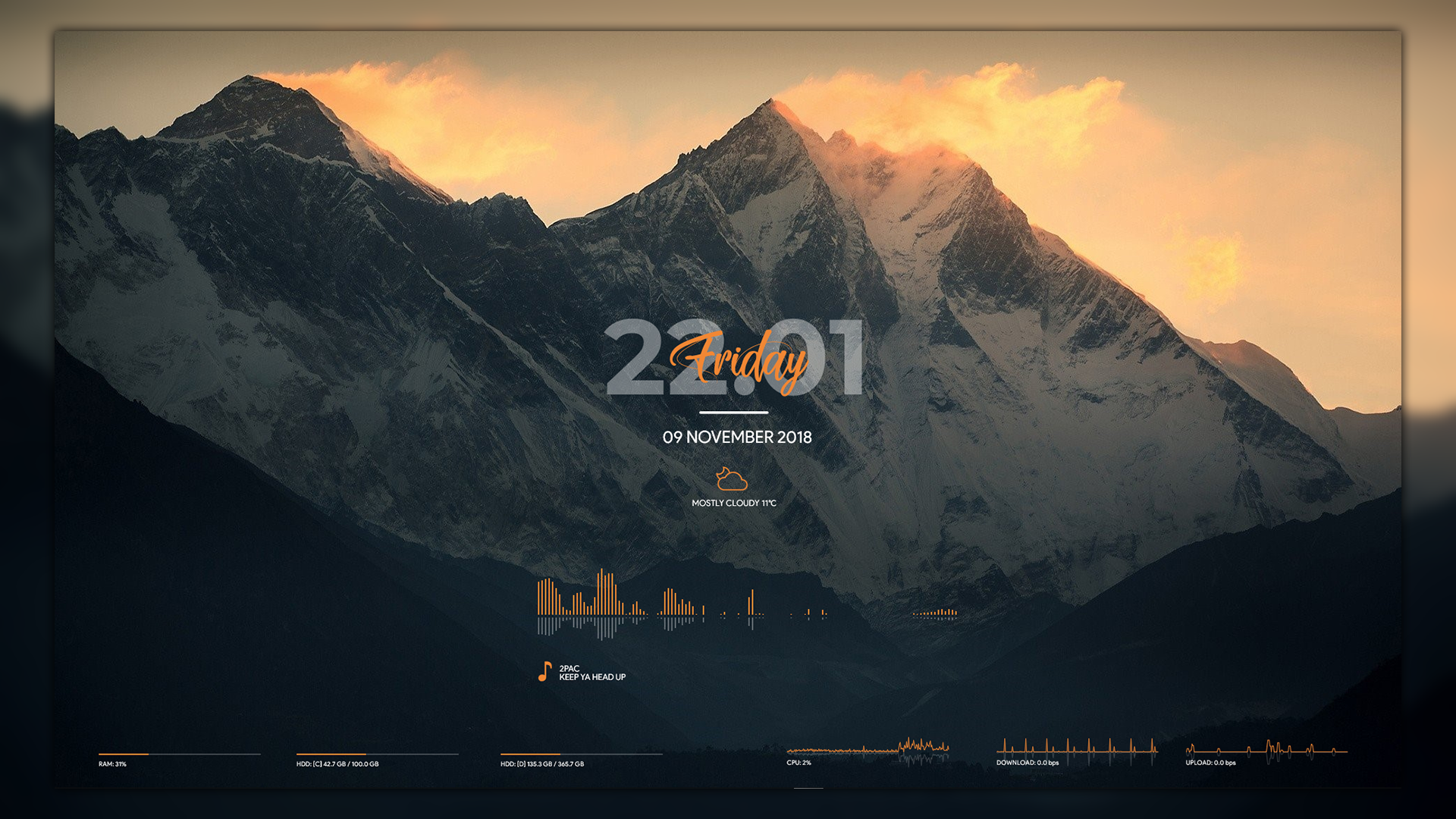
Give your Windows desktop a fresh look with the Robik Rainmeter skin. This downloadable Rainmeter skin adds a customizable desktop element to your setup. Preview the design below, then download the original .rmskin package and follow the installation steps.
Robik Rainmeter Skin Preview
Download Robik for Rainmeter
Use the download button below to get the original Robik .rmskin package. Rainmeter must be installed on your PC before you can apply the skin.
How to Install the Robik Rainmeter Skin
Before you begin: It is recommended that you create a Windows System Restore point.
- Install Rainmeter if it is not already installed.
- Download the Robik
.rmskinfile using the button below. - Double-click the downloaded
.rmskinfile, or right-click it and select Install. - When installation finishes, open Rainmeter. If it was already running, restart it if necessary.
- Open Rainmeter’s Manage window from its notification-area icon.
- Find the installed Robik skin in the skin list, select its
.inifile, and use the available Load control to display it.
If a Rainmeter skin is supplied as an unpacked folder rather than an .rmskin installer, move the complete folder to Documents\Rainmeter\Skins, then refresh or restart Rainmeter and load its .ini file from Manage.
Frequently Asked Questions
What do I need to use Robik?
You need Rainmeter installed on Windows. Robik is a Rainmeter skin package, not a standalone Windows application.
How do I install the Robik download?
Open the downloaded .rmskin file and follow the Rainmeter Skin Installer prompts. Then load the skin from Rainmeter’s Manage window.
Where can I find the installed skin?
Open Rainmeter’s Manage window and look for Robik in the list of installed skins.