Ads
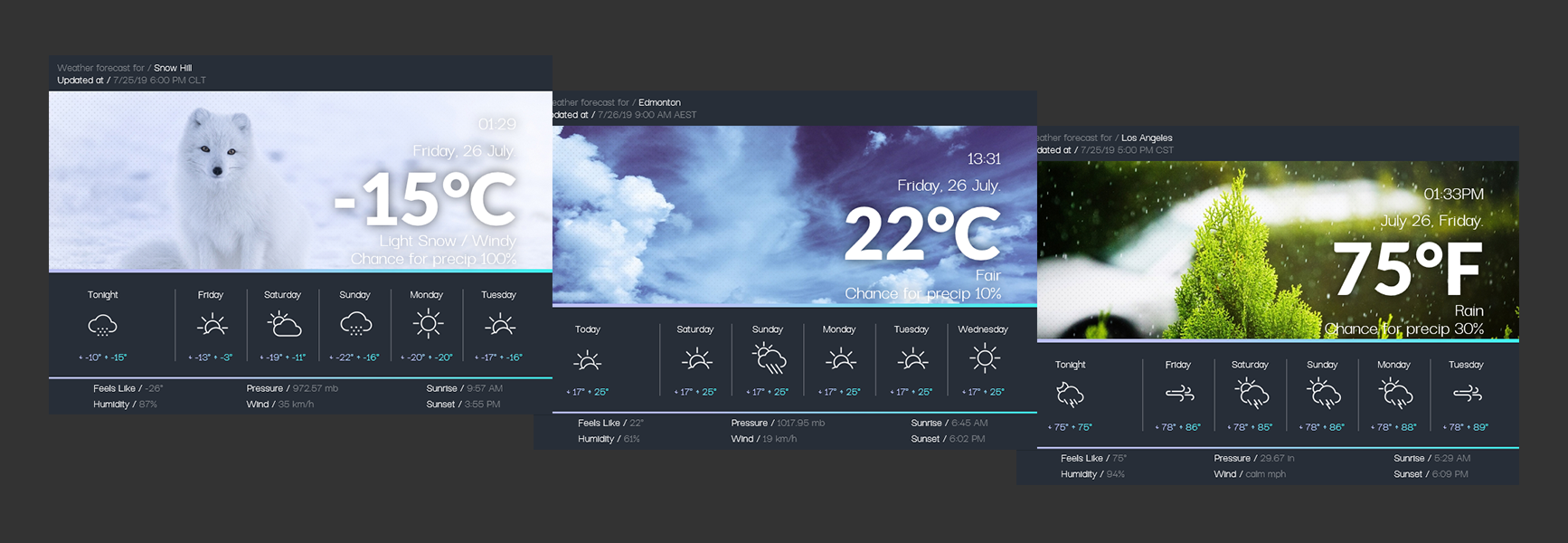
Customize your Windows desktop with Weather Widget Extended for Rainmeter. This downloadable Rainmeter skin adds an extended weather-themed widget to a desktop setup. Preview the original design, download the .rmskin package, and follow the steps below to install and load it.
Weather Widget Extended for Rainmeter – Preview
Download Weather Widget Extended
Use the download button below to get the original Weather Widget Extended .rmskin installer. Rainmeter must be installed on your Windows PC before you can use this skin.
How to Install Weather Widget Extended
Before making desktop customization changes: Consider creating a Windows System Restore point.
- Install Rainmeter if it is not already installed.
- Download the Weather Widget Extended
.rmskinfile from this page. - Double-click the downloaded package, or right-click it and select Install.
- When installation finishes, open Rainmeter. If it was already running and the new skin is not visible, restart or refresh Rainmeter.
- Open Rainmeter’s Manage window from its notification-area icon.
- Find Weather Widget Extended in the skin list, select its
.inifile, and click Load to display it.
If the download is supplied as an unpacked folder instead of an .rmskin installer, move the complete folder to Documents\Rainmeter\Skins, refresh Rainmeter, and load the skin’s .ini file from Manage. Weather location, forecast data, and any API or service configuration depend on the files included with this particular skin. Check its settings and accompanying instructions after installation.
Frequently Asked Questions
What is Weather Widget Extended for Rainmeter?
It is a Rainmeter skin package designed to add an extended weather-themed widget to a customized Windows desktop.
Do I need Rainmeter to use it?
Yes. Rainmeter is required to install and display Weather Widget Extended.
How do I load the widget?
After installing the .rmskin package, open Rainmeter’s Manage window, select the widget’s .ini file, and click Load.
Will it automatically show my local weather?
That depends on the skin’s weather data source and configuration. Check the included settings or documentation to see whether you need to enter a location or configure a weather service.