
Ads
OldNewExplorer is the Windows shell extension / tweaker which can undo “improvements” to file browsing made in newer Windows version. Everything is optional for your liking.
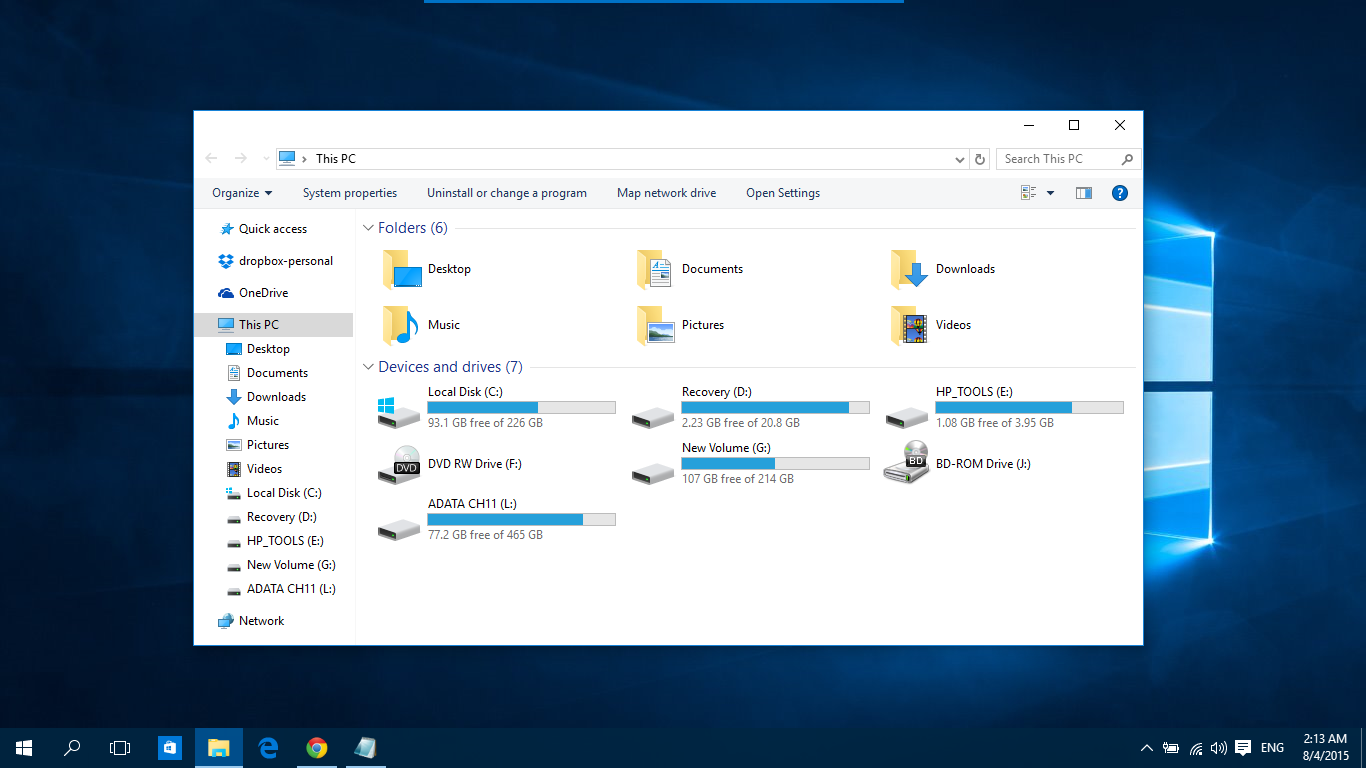
- Restore devices / drives grouping
Everything is ‘Devices and drives’. That’s stupid! O-N-E can restore grouping which made sense in Windows. - Restore libraries / remove folders
Remove all those folders which were unoptionally added into Windows 10 This PC folder and put the libraries back to their place, without registry hacking / breaking apps. - Restore command bar / remove Ribbon
Because some people consider it an abomination. - Restore details pane at bottom
Same reason; reclaim useful horizontal space. - Improve styling
Get rid of some Win7 stuff here and there; improve styling with some built-in visual styles.
For themers / skinners, O-N-E can help to override a lot of hardcoded styling in Windows, maybe even Start screen!
Ads
Share




[…] Install OldNewExplorer to remove the […]
[…] done wrongly. 1. Download and Install UltraUXThemePatcher on your computer. 2. Download and install OldNewExplorer to remove the window’s ribbon 2. Copy the Penumbra 10 theme file to […]
I always learn something new from your posts. This one was insightful and well-written.
Your insights are a valuable addition to the conversation on this topic. Excellent article!
I’m so glad I came across this article. Your insights are incredibly valuable and thought-provoking.
Your post is a great blend of information and personal insight. Really enjoyed reading it.
Excellent post! Your arguments are well thought out and convincingly presented. It’s clear you’ve put a lot of effort into this.
You have a real talent for making complex topics approachable and interesting. Fantastic work on this post!
[…] Install OldNewExplorer to remove the […]
[…] Install OldNewExplorer to remove the […]
This was a very enlightening read. Your ability to articulate complex ideas is impressive.
You have a knack for making complex topics accessible and interesting. Great job!
This article is proof of your expertise and dedication to quality content. It’s thorough, well-researched, and engaging.
Your posts are always a great resource. This one was particularly helpful and well-written.
I always look forward to your articles. They’re a blend of thorough research and engaging writing.
[…] Enlaces al tema Noche oscura: Concha clásica | Estilo UX | viento aerodinámico | ViejoNuevoExplorador […]
[…] Dans ce cas on trouve un thème exclusif pour Windows 10 et qu’il a été conçu pour utiliser des couleurs sombres complètement neutres. Cela se traduit par nous ne verrons ni contrastes ni dégradations couleur dans n’importe quelle section du système. Bien sûr, pour l’installer, nous avons besoin de deux autres outils essentiels tels que UltraUXThemePatcher Oui AncienNouveauExplorateur. […]
[…] In this case we find a exclusive theme for windows 10 and that it has been designed to use completely neutral dark colors. This translates to we will not see contrasts or degradations color in any section of the system. Of course, to install it we need two other essential tools such as UltraUXThemePatcher Y OldNewExplorer. […]
[…] In this case we find a exclusive theme for windows 10 and that it has been designed to use completely neutral dark colors. This means that we will not see contrasts or color degradations in any section of the system. Of course, to install it we need two other essential tools such as UltraUXThemePatcher Y OldNewExplorer. […]
[…] In this case we find a Exclusive theme for Windows 10 and that it has been designed to use completely neutral dark colors. This translates to we will not see contrasts or degradations color in any section of the system. Of course, to install it we need two other essential tools such as UltraUXThemePatcher Y OldNewExplorer. […]
[…] In this case we find a exclusive theme for Windows 10 and that it has been designed to use completely neutral dark colors. This translates to we will not see contrasts or degradations color in any section of the system. Of course, to install it we need two other essential tools such as UltraUXThemePatcher Y OldNewExplorer. […]
[…] Install OldNewExplorer to remove the […]
[…] Install OldNewExplorer to remove the […]
[…] Install OldNewExplorer to remove the […]
[…] Install OldNewExplorer to remove the […]
[…] Install OldNewExplorer to remove the […]
[…] Install OldNewExplorer to remove the […]
[…] Install OldNewExplorer to remove the […]
[…] Install OldNewExplorer to remove the […]
[…] Install OldNewExplorer to remove the […]
[…] Install OldNewExplorer to remove the […]
[…] Install OldNewExplorer to remove the […]
[…] Install OldNewExplorer to remove the […]
[…] Install OldNewExplorer to remove the […]
[…] Install OldNewExplorer to remove the […]
[…] Install OldNewExplorer to remove the […]
[…] Install OldNewExplorer to remove the […]
[…] Install OldNewExplorer to remove the […]
[…] Liên kết chủ đề tối về đêm: Vỏ cổ điển | UXStyle | Win Aero | OldNewExplorer […]
[…] OldNewExplorer to remove the window’s ribbon. […]
[…] Download OldNewExplorer […]
[…] Install OldNewExplorer to remove the […]
[…] Install OldNewExplorer to remove the […]
[…] Install OldNewExplorer to remove the […]
[…] Install OldNewExplorer to remove the […]
[…] Install OldNewExplorer to remove the […]
[…] Install OldNewExplorer to remove the […]
[…] Install OldNewExplorer to remove the […]
[…] Install OldNewExplorer to remove the […]
[…] Install OldNewExplorer to remove the […]
[…] Install OldNewExplorer to remove the […]
[…] Install OldNewExplorer to remove the […]
[…] Install OldNewExplorer to remove the […]
[…] Install OldNewExplorer to remove the […]
[…] Install OldNewExplorer to remove the […]
[…] Install OldNewExplorer to remove the […]
[…] OldNewExplorer pour supprimer le ruban de la fenêtre. […]
[…] Install OldNewExplorer to remove the […]
[…] Install OldNewExplorer to remove the […]
[…] Best work on 100% scale and layout size, you need to set it from display setting, also for enable windows theme first install uxtheme patcher. […]
[…] Install OldNewExplorer to remove the […]
[…] Install OldNewExplorer to remove the […]
[…] Install OldNewExplorer to remove the […]
[…] Install OldNewExplorer to remove the […]
[…] Install OldNewExplorer to remove the […]
[…] Best work on 100% scale and layout size, you need to set it from display setting, also for enable windows theme first install uxtheme patcher. […]
[…] Best work on 100% scale and layout size, you need to set it from display setting, also for enable windows theme first install uxtheme patcher. […]
[…] Install OldNewExplorer to remove the […]
[…] Best work on 100% scale and layout size, you need to set it from display setting, also for enable windows theme first install uxtheme patcher. […]
[…] Best work on 100% scale and layout size, you need to set it from display setting, also for enable windows theme first install uxtheme patcher. […]
[…] Install OldNewExplorer to remove the […]
[…] Install OldNewExplorer to remove the […]
[…] Install OldNewExplorer to remove the […]
[…] Install OldNewExplorer to remove the […]
[…] Install OldNewExplorer to remove the […]
[…] Install OldNewExplorer to remove the […]
[…] Install OldNewExplorer to remove the […]
[…] Install OldNewExplorer to remove the […]
[…] Install OldNewExplorer to remove the […]
[…] Install OldNewExplorer to remove the […]
[…] Install OldNewExplorer to remove the […]
[…] Install OldNewExplorer to remove the […]
[…] Install OldNewExplorer to remove the […]
[…] Install OldNewExplorer to remove the […]
[…] Install OldNewExplorer to remove the […]
[…] Install OldNewExplorer to remove the […]
[…] Best work on 100% scale and layout size, you need to set it from display setting, also for enable windows theme first install uxtheme patcher. […]
[…] Install OldNewExplorer to remove the […]
[…] Install OldNewExplorer to remove the […]
[…] Install OldNewExplorer to remove the […]
[…] Install OldNewExplorer to remove the […]
[…] Install OldNewExplorer to remove the […]
[…] Install OldNewExplorer to remove the […]
[…] Install OldNewExplorer to remove the […]
[…] Install OldNewExplorer to remove the […]
[…] Install OldNewExplorer to remove the […]
[…] Install OldNewExplorer to remove the […]
[…] Install OldNewExplorer to remove the […]
[…] Install OldNewExplorer to remove the […]
[…] Install OldNewExplorer to remove the […]
[…] Install OldNewExplorer to remove the […]
[…] Install OldNewExplorer to remove the […]
[…] Install OldNewExplorer to remove the […]
[…] Install OldNewExplorer to remove the […]
[…] Install OldNewExplorer to remove the […]
[…] Install OldNewExplorer to remove the […]
[…] Install OldNewExplorer to remove the […]
[…] Install OldNewExplorer to remove the […]
[…] Install OldNewExplorer to remove the […]
[…] Install OldNewExplorer to remove the […]
[…] Install OldNewExplorer to remove the […]
[…] Install OldNewExplorer to remove the […]
[…] Install OldNewExplorer to remove the […]
[…] Install OldNewExplorer to remove the […]
[…] Install OldNewExplorer to remove the […]
[…] Install OldNewExplorer to remove the […]
[…] Install OldNewExplorer to remove the […]
[…] Install OldNewExplorer to remove the […]
[…] Install OldNewExplorer to remove the […]
[…] Install OldNewExplorer to remove the […]
[…] Install OldNewExplorer to remove the […]
[…] Install OldNewExplorer to remove the […]
[…] Best work on 100% scale and layout size, you need to set it from display setting, also for enable windows theme first install uxtheme patcher. […]
[…] Install OldNewExplorer to remove the […]
[…] Install OldNewExplorer to remove the […]
[…] Install OldNewExplorer to remove the […]
[…] Install OldNewExplorer to remove the […]
[…] Install OldNewExplorer to remove the […]
[…] Install OldNewExplorer to remove the […]
[…] Install OldNewExplorer to remove the […]
[…] Install OldNewExplorer to remove the […]
[…] Install OldNewExplorer to remove the […]
[…] Install OldNewExplorer to remove the […]
[…] Install OldNewExplorer to remove the […]
[…] Install OldNewExplorer to remove the […]
[…] Install OldNewExplorer to remove the […]
[…] Install OldNewExplorer to remove the […]
[…] Install OldNewExplorer to remove the […]
[…] Install OldNewExplorer to remove the […]
[…] Install OldNewExplorer to remove the […]
[…] Install OldNewExplorer to remove the […]
[…] Install OldNewExplorer to remove the […]
[…] Install OldNewExplorer to remove the […]
[…] Install OldNewExplorer to remove the […]
[…] Install OldNewExplorer to remove the […]
[…] Install OldNewExplorer to remove the […]
[…] Install OldNewExplorer to remove the […]
[…] Install OldNewExplorer to remove the […]
[…] Install OldNewExplorer to remove the […]
[…] Install OldNewExplorer to remove the […]
[…] Install OldNewExplorer to remove the […]
[…] Install OldNewExplorer to remove the […]
[…] Install OldNewExplorer to remove the […]
[…] Install OldNewExplorer to remove the […]
[…] Install OldNewExplorer to remove the […]
[…] Install OldNewExplorer to remove the […]
[…] Install OldNewExplorer to remove the […]
[…] Install OldNewExplorer to remove the […]
[…] Install OldNewExplorer to remove the […]
[…] Install OldNewExplorer to remove the […]
[…] Install OldNewExplorer to remove the […]
[…] Install OldNewExplorer to remove the […]
[…] Install OldNewExplorer to remove the […]
[…] Install OldNewExplorer to remove the […]
[…] Install OldNewExplorer to remove the […]
[…] Install OldNewExplorer to remove the […]
[…] Install OldNewExplorer to remove the […]
[…] Install OldNewExplorer to remove the […]
[…] Install OldNewExplorer to remove the […]
[…] Best work on 100% scale and layout size, you need to set it from display setting, also for enable windows theme first install uxtheme patcher. […]
[…] Install OldNewExplorer to remove the […]
[…] Install OldNewExplorer to remove the […]
[…] Install OldNewExplorer to remove the […]
[…] Install OldNewExplorer to remove the […]
[…] Install OldNewExplorer to remove the […]
[…] Install OldNewExplorer to remove the […]
[…] Install OldNewExplorer to remove the […]
[…] Install OldNewExplorer to remove the […]
[…] Install OldNewExplorer to remove the […]
[…] Install OldNewExplorer to remove the […]
[…] Install OldNewExplorer to remove the […]
[…] Install OldNewExplorer to remove the […]
[…] Install OldNewExplorer to remove the […]
[…] Install OldNewExplorer to remove the […]
[…] Install OldNewExplorer to remove the […]
[…] Install OldNewExplorer to remove the […]
[…] Install OldNewExplorer to remove the […]
[…] Install OldNewExplorer to remove the […]
[…] Install OldNewExplorer to remove the […]
[…] Install OldNewExplorer to remove the […]
[…] Install OldNewExplorer to remove the […]
[…] Install OldNewExplorer to remove the […]
[…] Install OldNewExplorer to remove the […]
[…] Install OldNewExplorer to remove the […]
[…] Install OldNewExplorer to remove the […]
[…] Install OldNewExplorer to remove the […]
[…] Install OldNewExplorer to remove the […]
[…] Install OldNewExplorer to remove the […]
[…] Install OldNewExplorer to remove the […]
[…] Install OldNewExplorer to remove the […]
[…] Install OldNewExplorer to remove the […]
[…] Install OldNewExplorer to remove the […]
[…] Install OldNewExplorer to remove the […]
[…] Install OldNewExplorer to remove the […]
[…] Install OldNewExplorer to remove the […]
[…] Install OldNewExplorer to remove the […]
[…] Install OldNewExplorer to remove the […]
[…] Install OldNewExplorer to remove the […]
[…] Install OldNewExplorer to remove the […]
[…] Install OldNewExplorer to remove the […]
[…] Install OldNewExplorer to remove the […]
[…] Install OldNewExplorer to remove the […]
[…] Install OldNewExplorer to remove the […]
[…] Install OldNewExplorer to remove the […]
[…] Install OldNewExplorer to remove the […]
[…] Install OldNewExplorer to remove the […]
[…] Install OldNewExplorer to remove the […]
[…] Best work on 100% scale and layout size, you need to set it from display setting, also for enable windows theme first install uxtheme patcher. […]
[…] Install OldNewExplorer to remove the […]
[…] Install OldNewExplorer to remove the […]
[…] Install OldNewExplorer to remove the […]
[…] Install OldNewExplorer to remove the […]
[…] Install OldNewExplorer to remove the […]
[…] Install OldNewExplorer to remove the […]
[…] Install OldNewExplorer to remove the […]
[…] Install OldNewExplorer to remove the […]
[…] Install OldNewExplorer to remove the […]
[…] Install OldNewExplorer to remove the […]
[…] Install OldNewExplorer to remove the […]
[…] Install OldNewExplorer to remove the […]
[…] Install OldNewExplorer to remove the […]
[…] Install OldNewExplorer to remove the […]
[…] Install OldNewExplorer to remove the […]
[…] Install OldNewExplorer to remove the […]
[…] Install OldNewExplorer to remove the […]
[…] Install OldNewExplorer to remove the […]
[…] Install OldNewExplorer to remove the […]
[…] Install OldNewExplorer to remove the […]
[…] Install OldNewExplorer to remove the […]
[…] Install OldNewExplorer to remove the […]
[…] Install OldNewExplorer to remove the […]
[…] Install OldNewExplorer to remove the […]
[…] Install OldNewExplorer to remove the […]
[…] Install OldNewExplorer to remove the […]
[…] Install OldNewExplorer to remove the […]
[…] Install OldNewExplorer to remove the […]
[…] Best work on 100% scale and layout size, you need to set it from display setting, also for enable windows theme first install uxtheme patcher. […]
[…] Best work on 100% scale and layout size, you need to set it from display setting, also for enable windows theme first install uxtheme patcher. […]
[…] Best work on 100% scale and layout size, you need to set it from display setting, also for enable windows theme first install uxtheme patcher. […]
[…] Best work on 100% scale and layout size, you need to set it from display setting, also for enable windows theme first install uxtheme patcher. […]
[…] Best work on 100% scale and layout size, you need to set it from display setting, also for enable windows theme first install uxtheme patcher. […]
[…] Best work on 100% scale and layout size, you need to set it from display setting, also for enable windows theme first install uxtheme patcher. […]
[…] Best work on 100% scale and layout size, you need to set it from display setting, also for enable windows theme first install uxtheme patcher. […]
[…] Best work on 100% scale and layout size, you need to set it from display setting, also for enable windows theme first install uxtheme patcher. […]
[…] Best work on 100% scale and layout size, you need to set it from display setting, also for enable windows theme first install uxtheme patcher. […]
[…] Best work on 100% scale and layout size, you need to set it from display setting, also for enable windows theme first install uxtheme patcher. […]
[…] Best work on 100% scale and layout size, you need to set it from display setting, also for enable windows theme first install uxtheme patcher. […]
[…] OldNewExplorer to remove the window’s ribbon. […]
[…] Best work on 100% scale and layout size, you need to set it from display setting, also for enable windows theme first install uxtheme patcher. […]
[…] Best work on 100% scale and layout size, you need to set it from display setting, also for enable windows theme first install uxtheme patcher. […]
[…] Best work on 100% scale and layout size, you need to set it from display setting, also for enable windows theme first install uxtheme patcher. […]
[…] Best work on 100% scale and layout size, you need to set it from display setting, also for enable windows theme first install uxtheme patcher. […]
[…] Best work on 100% scale and layout size, you need to set it from display setting, also for enable windows theme first install uxtheme patcher. […]
[…] Best work on 100% scale and layout size, you need to set it from display setting, also for enable windows theme first install uxtheme patcher. […]
[…] Best work on 100% scale and layout size, you need to set it from display setting, also for enable windows theme first install uxtheme patcher. […]
[…] Best work on 100% scale and layout size, you need to set it from display setting, also for enable windows theme first install uxtheme patcher. […]
[…] Best work on 100% scale and layout size, you need to set it from display setting, also for enable windows theme first install uxtheme patcher. […]
[…] Best work on 100% scale and layout size, you need to set it from display setting, also for enable windows theme first install uxtheme patcher. […]
[…] Best work on 100% scale and layout size, you need to set it from display setting, also for enable windows theme first install uxtheme patcher. […]
[…] OldNewExplorer. […]
[…] Best work on 100% scale and layout size, you need to set it from display setting, also for enable windows theme first install uxtheme patcher. […]
[…] Best work on 100% scale and layout size, you need to set it from display setting, also for enable windows theme first install uxtheme patcher. […]
[…] Best work on 100% scale and layout size, you need to set it from display setting, also for enable windows theme first install uxtheme patcher. […]
[…] Install OldNewExplorer to remove the […]
[…] Install OldNewExplorer to remove the […]
[…] Install OldNewExplorer to remove the […]
[…] Install OldNewExplorer to remove the […]
[…] Install OldNewExplorer to remove the […]
[…] Best work on 100% scale and layout size, you need to set it from display setting, also for enable windows theme first install uxtheme patcher. […]
[…] Best work on 100% scale and layout size, you need to set it from display setting, also for enable windows theme first install uxtheme patcher. […]
[…] Best work on 100% scale and layout size, you need to set it from display setting, also for enable windows theme first install uxtheme patcher. […]
[…] Best work on 100% scale and layout size, you need to set it from display setting, also for enable windows theme first install uxtheme patcher. […]
[…] Best work on 100% scale and layout size, you need to set it from display setting, also for enable windows theme first install uxtheme patcher. […]
[…] Best work on 100% scale and layout size, you need to set it from display setting, also for enable windows theme first install uxtheme patcher. […]
[…] Best work on 100% scale and layout size, you need to set it from display setting, also for enable windows theme first install uxtheme patcher. […]
[…] Best work on 100% scale and layout size, you need to set it from display setting, also for enable windows theme first install uxtheme patcher. […]
[…] Install OldNewExplorer to remove the […]
[…] Install OldNewExplorer to remove the […]
[…] Install OldNewExplorer to remove the […]
[…] Install OldNewExplorer to remove the […]
[…] Best work on 100% scale and layout size, you need to set it from display setting, also for enable windows theme first install uxtheme patcher. […]
[…] Best work on 100% scale and layout size, you need to set it from display setting, also for enable windows theme first install uxtheme patcher. […]
[…] Best work on 100% scale and layout size, you need to set it from display setting, also for enable windows theme first install uxtheme patcher. […]
[…] Best work on 100% scale and layout size, you need to set it from display setting, also for enable windows theme first install uxtheme patcher. […]
[…] Install OldNewExplorer to remove the […]
[…] Install OldNewExplorer to remove the […]
[…] Install OldNewExplorer to remove the […]
[…] Install OldNewExplorer to remove the […]
[…] Install OldNewExplorer to remove the […]
[…] Install OldNewExplorer to remove the […]
[…] Best work on 100% scale and layout size, you need to set it from display setting, also for enable windows theme first install uxtheme patcher. […]
[…] Best work on 100% scale and layout size, you need to set it from display setting, also for enable windows theme first install uxtheme patcher. […]
[…] Install OldNewExplorer to remove the […]
[…] Install OldNewExplorer to remove the […]
[…] Install OldNewExplorer to remove the […]
[…] Install OldNewExplorer to remove the […]
[…] Install OldNewExplorer to remove the […]
[…] Install OldNewExplorer to remove the […]
[…] Best work on 100% scale and layout size, you need to set it from display setting, also for enable windows theme first install uxtheme patcher. […]
[…] OldNewExplorer and enable only the following […]
[…] Install OldNewExplorer to remove the […]
[…] Install OldNewExplorer to remove the […]
[…] Install OldNewExplorer to remove the […]
[…] Install OldNewExplorer to remove the […]
[…] Install OldNewExplorer to remove the […]
[…] Install OldNewExplorer to remove the […]
[…] Install OldNewExplorer to remove the […]
[…] Install OldNewExplorer to remove the […]
[…] Install OldNewExplorer to remove the […]
[…] Install OldNewExplorer to remove the […]
[…] Install OldNewExplorer to remove the […]
[…] Install OldNewExplorer to remove the […]
[…] Install OldNewExplorer to remove the […]
[…] Install OldNewExplorer to remove the […]
[…] Install OldNewExplorer to remove the […]
[…] Install OldNewExplorer to remove the […]
[…] Install OldNewExplorer to remove the […]
[…] Install OldNewExplorer to remove the […]
[…] Install OldNewExplorer to remove the […]
[…] Install OldNewExplorer to remove the […]
[…] Install OldNewExplorer to remove the […]
[…] Install OldNewExplorer to remove the […]
[…] Install OldNewExplorer to remove the […]
[…] Install OldNewExplorer to remove the […]
[…] Install OldNewExplorer to remove the […]
[…] Install OldNewExplorer to remove the […]
[…] Install OldNewExplorer to remove the […]
[…] Install OldNewExplorer to remove the […]
[…] Install OldNewExplorer to remove the […]
[…] Install OldNewExplorer to remove the […]
[…] Install OldNewExplorer to remove the […]
[…] Install OldNewExplorer to remove the […]
[…] Install OldNewExplorer to remove the […]
[…] Install OldNewExplorer to remove the […]
[…] Install OldNewExplorer to remove the […]
[…] Install OldNewExplorer to remove the […]
[…] Install OldNewExplorer to remove the […]
[…] Install OldNewExplorer to remove the […]
[…] Install OldNewExplorer to remove the […]
[…] Install OldNewExplorer to remove the […]
[…] Install OldNewExplorer to remove the […]
[…] Install OldNewExplorer to remove the […]
[…] Install OldNewExplorer to remove the […]
[…] Install OldNewExplorer to remove the […]
[…] Install OldNewExplorer to remove the […]
[…] Install OldNewExplorer to remove the […]
[…] Install OldNewExplorer to remove the […]
[…] Install OldNewExplorer to remove the […]
[…] Install OldNewExplorer to remove the […]
[…] Install OldNewExplorer to remove the […]
[…] Install OldNewExplorer to remove the […]
[…] Install OldNewExplorer to remove the […]
[…] Install OldNewExplorer to remove the […]
[…] Install OldNewExplorer to remove the […]
[…] Install OldNewExplorer to remove the […]
[…] Install OldNewExplorer to remove the […]
[…] Install OldNewExplorer to remove the […]
[…] Install OldNewExplorer to remove the […]
[…] Install OldNewExplorer to remove the […]
[…] Install OldNewExplorer to remove the […]
[…] Install OldNewExplorer to remove the […]
[…] Install OldNewExplorer to remove the […]
[…] Install OldNewExplorer to remove the […]
[…] Install OldNewExplorer to remove the […]
[…] Install OldNewExplorer to remove the […]
[…] Install OldNewExplorer to remove the […]
[…] Install OldNewExplorer to remove the […]
[…] Install OldNewExplorer to remove the […]
[…] Install OldNewExplorer to remove the […]
[…] Install OldNewExplorer to remove the […]
[…] Install OldNewExplorer to remove the […]
[…] Install OldNewExplorer to remove the […]
[…] Install OldNewExplorer to remove the […]
[…] Install OldNewExplorer to remove the […]
[…] Install OldNewExplorer to remove the […]
[…] Install OldNewExplorer to remove the […]
[…] Install OldNewExplorer to remove the […]
[…] Install OldNewExplorer to remove the […]
[…] Install OldNewExplorer to remove the […]
[…] Install OldNewExplorer to remove the […]
[…] Install OldNewExplorer to remove the […]
[…] Install OldNewExplorer to remove the […]
[…] Install OldNewExplorer to remove the […]
[…] Install OldNewExplorer to remove the […]
[…] Install OldNewExplorer to remove the […]
[…] Install OldNewExplorer to remove the […]
[…] Install OldNewExplorer to remove the […]
[…] Install OldNewExplorer to remove the […]
[…] OldNewExplorer […]
[…] Install OldNewExplorer to remove the […]
[…] Install OldNewExplorer to remove the […]
[…] Install OldNewExplorer to remove the […]
[…] Install OldNewExplorer to remove the […]
[…] Install OldNewExplorer to remove the […]
[…] Install OldNewExplorer to remove the […]
[…] Install OldNewExplorer to remove the […]
[…] Install OldNewExplorer to remove the […]
[…] Install OldNewExplorer to remove the […]
[…] Install OldNewExplorer to remove the […]
[…] Install OldNewExplorer to remove the ribbon. […]
[…] Install OldNewExplorer to remove the ribbon. […]
[…] Install OldNewExplorer to remove the ribbon. […]
[…] Install OldNewExplorer to remove the ribbon. […]
[…] Install OldNewExplorer to remove the […]
[…] Install OldNewExplorer to remove the […]
[…] Install OldNewExplorer to remove the […]
[…] Install OldNewExplorer to remove the ribbon. […]
[…] Install OldNewExplorer to remove the […]
[…] Install OldNewExplorer to remove the […]
[…] Install OldNewExplorer to remove the […]
[…] Install OldNewExplorer to remove the […]
[…] Install OldNewExplorer to remove the […]
[…] OldNewExplorer. […]
[…] Install OldNewExplorer to remove the […]
[…] Install OldNewExplorer to remove the […]
[…] Install OldNewExplorer to remove the […]
[…] Install OldNewExplorer to remove the […]
[…] Install OldNewExplorer to remove the […]
[…] Install OldNewExplorer to remove the […]
[…] Install OldNewExplorer to remove the […]
[…] Install OldNewExplorer to remove the […]
[…] Install OldNewExplorer to remove the […]
[…] Install OldNewExplorer to remove the […]
[…] Install OldNewExplorer to remove the […]
[…] Install OldNewExplorer to remove the […]
[…] Install OldNewExplorer to remove the […]
[…] Install OldNewExplorer to remove the […]
[…] Install OldNewExplorer to remove the […]
[…] Install OldNewExplorer to remove the […]
[…] Install OldNewExplorer to remove the […]
[…] Install OldNewExplorer to remove the […]
[…] Install OldNewExplorer to remove the […]
[…] Install OldNewExplorer to remove the […]
[…] Install OldNewExplorer to remove the […]
[…] Install OldNewExplorer to remove the […]
[…] Install OldNewExplorer to remove the […]
[…] Install OldNewExplorer to remove the […]
[…] Install OldNewExplorer to remove the […]
[…] Install OldNewExplorer to remove the […]
[…] Install OldNewExplorer to remove the […]
[…] Install OldNewExplorer to remove the […]
[…] Install OldNewExplorer to remove the […]
[…] Install OldNewExplorer to remove the […]
[…] Install OldNewExplorer to remove the […]
[…] Install OldNewExplorer to remove the […]
[…] Install OldNewExplorer to remove the […]
[…] Install OldNewExplorer to remove the […]
[…] Install OldNewExplorer to remove the […]
[…] Install OldNewExplorer to remove the […]
[…] Install OldNewExplorer to remove the […]
[…] Install OldNewExplorer to remove the […]
[…] Install OldNewExplorer to remove the […]
[…] Install OldNewExplorer to remove the […]
[…] Install OldNewExplorer to remove the […]
[…] Install OldNewExplorer to remove the […]
[…] Install OldNewExplorer to remove the […]
[…] Install OldNewExplorer to remove the […]
[…] Install OldNewExplorer to remove the […]
[…] Install OldNewExplorer to remove the […]
[…] Install OldNewExplorer to remove the […]
[…] Install OldNewExplorer to remove the […]
[…] Install OldNewExplorer to remove the […]
[…] Install OldNewExplorer to remove the […]
[…] Install OldNewExplorer to remove the […]
[…] Install OldNewExplorer to remove the […]
[…] Install OldNewExplorer to remove the […]
[…] Install OldNewExplorer to remove the […]
[…] Install OldNewExplorer to remove the […]
[…] Install OldNewExplorer to remove the […]
[…] Install OldNewExplorer to remove the […]
[…] Install OldNewExplorer to remove the […]
[…] Install OldNewExplorer to remove the […]
[…] Install OldNewExplorer to remove the […]
[…] Install OldNewExplorer to remove the […]
[…] Install OldNewExplorer to remove the […]
[…] Install OldNewExplorer to remove the […]
[…] Install OldNewExplorer to remove the […]
[…] Install OldNewExplorer to remove the […]
[…] Install OldNewExplorer to remove the […]
[…] Install OldNewExplorer to remove the […]
[…] Install OldNewExplorer to remove the […]
[…] Old new Explorer […]
I am wanting to get the password
skinpacks.com
[…] OldNewExplorer برای حذف نوار پنجره. […]
[…] OldNewExplorer […]
[…] Để sử dụng được Penumbra 10, bạn cần có thêm 2 phần mềm UXThemePatcher và OldNewExplorer. […]
[…] OldNewExplorer to take away the window’s ribbon. […]
[…] OldNewExplorer to take away the window’s ribbon. […]
[…] OldNewExplorer to remove the window’s ribbon. […]
[…] OldNewExplorer to remove the window’s ribbon. […]
[…] OldNewExplorer […]
[…] شما نصب نمی شود و باید ابزارهای Classic Shell، Win Aero، UXStyle، OldNewExplorer را دانلود کنید. بعد از دانلود این ابزارها می توانید از […]
[…] OldNewExplorer […]
NHL Jerseys From China
Falling back to No.
[…] OldNewExplorer […]
[…] OldNewExplorer […]
Is there any posibility to skin the Ribbon?
[…] OldNewExplorer […]
[…] OldNewExplorer […]
[…] OldNewExplorer […]
[…] OldNewExplorer […]
As of January this program does not work with Windows 10.
So far as I can tell I am using the most recent version and it works fine on windows 10, depending on what you are using it for. I use it for free movement of my icons so I can manually arrange them and this still works just fine. I am using Windows 10 Pro.
I love that I can move the details pan to the bottom of the window where it belongs, but could you please add a feature to also move the preview pane to the bottom as well? Or include it as part of the details pane? I am used to this from windows 7 and having a separate preview pane that is huge and permanently stuck on the right that isn’t included in the details pane is really annoying and takes up way too much space.
removing folders from My PC causes problem when creating new folder at any folder says file/folder not found. Then caused the folder icon (just icon not name) to disappear. I did scan /sfc.. something like that (forgot the wrod/code). Yhen upon restarting the lockscreen didn’t appear but flashes/flakes the windows accent color. Luckily I have had system restore point and fixed my system. But the bug is still their.. Plz fix this..
I had exactly the same problem. If you are using this, then uncheck the first two options.
[…] If its not work for you or you dont want to modify system files then try this. […]