Ads
Every Icon on Your PC, Finally Yours.
Change any icon on your PC in a few clicks. Your folders, file types, drives, apps, even the system icons Windows normally keeps locked. No moving files, no risky tweaks. Don’t like a change? Easily reverse back.

Free to try. Works on Windows 11. One-click undo.
Every Windows Icon, Re-Skinnable
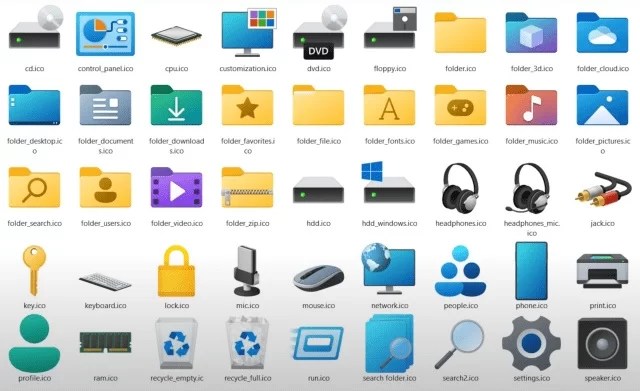
Change all your Windows 11 icons all in one app. Folders, file types, drives, your installed programs, and the system icons you normally can’t touch.
Pick, Preview, Apply. Easily Reverse anytime.
Custom Folder Icons and File Types
Give your folders their own look so you can spot them instantly. Change the icon on any folder, and on file types too, so your .psd, .zip, or .mp4 files stand out before you even open them.
Save & Apply Profiles
Set up a whole look you love and save it as a profile. Then switch your entire desktop over in one click. Make a festive set for the holidays, a clean one for work, and swap between them whenever you want.
User Programs
Don’t like the icon on one of your apps? Change it. IconStyler lets you swap the icons on your installed programs, not just your folders.
Windows and System Icons
Change the Windows system icons that are normally locked or off-limits, like File Explorer, Home, Gallery, your drives, and the shortcut arrow. Swap all these hidden icons in a single click.
Search and Filter
Search a huge library and find the icon you want in seconds.
Multi-Select Apply
Select a batch of folders and change them all at once.
Live Preview
See every change on your desktop before you commit.
Import Your Own
Add your own icons. PNG, ICO, or SVG.
One-Click Restore
Put any icon back to the Windows default in one click.
Light and Dark Themes
The app automatically matches your Windows light or dark mode.

Why IconStyler
Other tools change one kind of icon, or make you dig through the registry. IconStyler changes them all, keeps your files safe, and lets you undo anything in one click.
How to Change Folder Icons in Windows 11 for FREE with IconStyler

What is IconStyler?
IconStyler is a Windows 11 app I built that lets you restyle the icons Windows shows, folders, file types, drives, programs, and system icons, all from one place with a live preview before you apply anything. It only changes how Windows displays the icon, it never moves, renames, or deletes your actual files, so it’s completely safe to play around with.
Note: IconStyler currently requires Windows 11 (64-bit).
How to change the default folder icons using IconStyler
1. Download and install IconStyler from the website. Once it’s open, select “Folders” from the categories on the left, then pick the folder icon you want to change. On the free version you can change the main Folder, Open Folder, .zip, and OneDrive icons, upgrading to Pro unlocks every folder icon.

2. Extract a new icon from a file or browse to your own custom icon, check it in the live preview, then hit Apply. Each change you make gets added to a Pending Changes queue first, so if you’re updating a few icons at once you can queue them all up and apply them together in one batch.

Note: Using a custom icon is recommended so you don’t confuse it with something else that uses the same default icon.
Some important things to note
IconStyler is built to be fully reversible. If a folder ever glitches and shows a blank icon or the default page icon (this can happen occasionally since it’s just how Windows caches icons, not a bug in the app), head to the Troubleshoot tab and use the icon cache tools to clear the cache, then reapply.
If you want to undo a single change, use Restore Default on that icon. If you want to go back to stock Windows across the board, use Restore All and it’ll put everything back to default.
Most icon changes don’t need admin permissions, but a few protected system icons will ask for a one-time admin confirmation, that’s normal and expected.
Also, heads up that IconStyler is currently in beta, so you may run into the occasional bug. If you do, please report it in the Discord instead of just commenting here, that’s the fastest way to get it fixed.