Ads

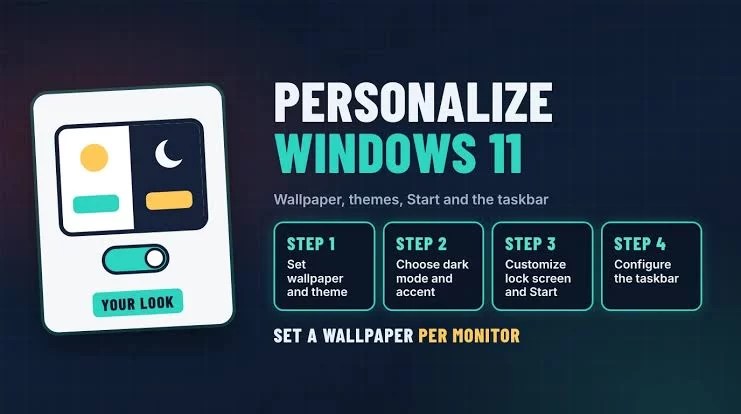
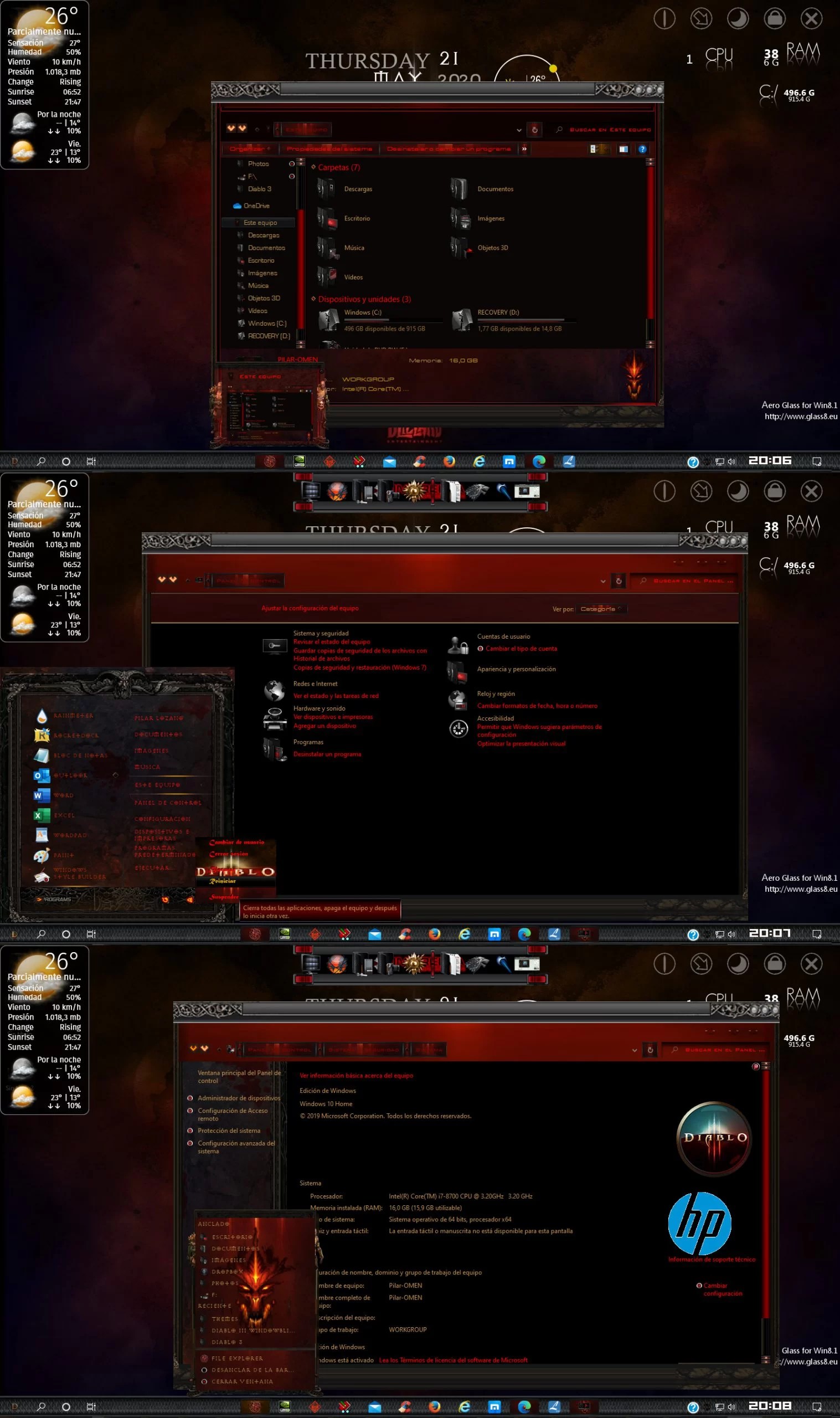
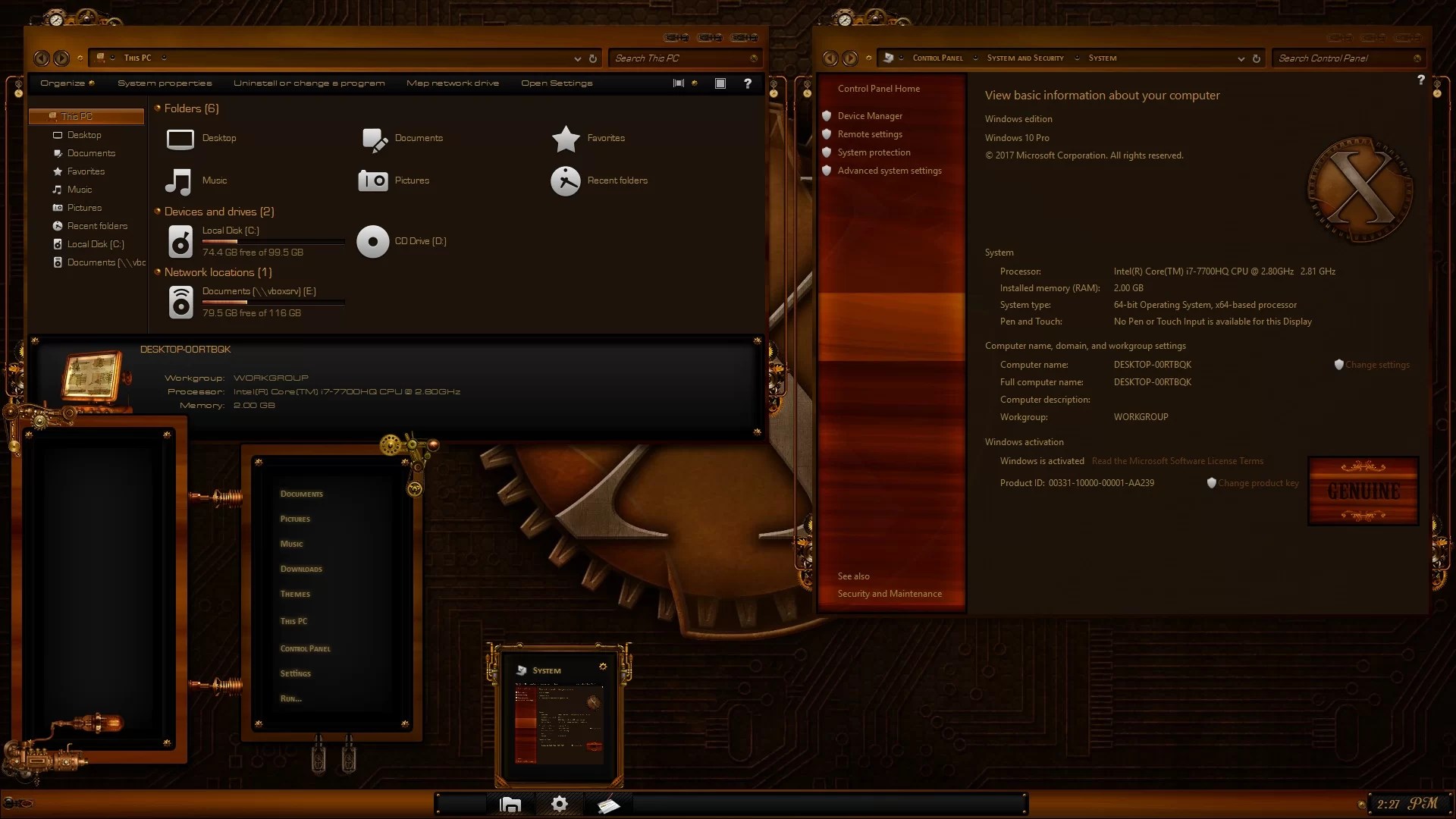
Looking for the best Windows 11 themes to give your desktop a completely new look? Whether you prefer a modern macOS-inspired design, a futuristic gaming interface, a clean minimalist appearance, or the classic look of older Windows versions, there are plenty of ways to customize Windows 11.
Windows 11 already offers several personalization options, but third-party themes and Themes can take desktop customization much further. Depending on the package, you can change wallpapers, icons, cursors, sounds, window styles, and other visual elements to create a desktop that matches your personal style.
In this guide, we’ve selected some of the best Windows 11 themes available from Themes, covering different styles and preferences. We’ll also explain how to choose, install, and safely customize your Windows desktop.
1. Ubuntu Theme – Best Linux-style Windows 11 Theme

Do you like the Ubuntu desktop environment but want to keep using Windows 11? Ubuntu-inspired themes offer a Linux-style visual direction for Windows.
Why choose Ubuntu Theme?
- Ubuntu-inspired desktop appearance.
- A Linux-style visual design.
- An alternative to the standard Windows 11 look.
- Designed for Windows 11.
Download: Ubuntu Theme for Windows 11 and 10
2. Windows XP Theme – Best Retro Windows 11 Theme

For users who remember the classic Windows XP experience, a Windows XP-inspired theme offers a nostalgic customization option.
Why choose Windows XP Theme?
- Windows XP-inspired desktop design.
- A different look from the default Windows 11 interface.
- Suitable for users who prefer retro themes.
- Available for Windows 11.
Download: Windows XP Theme for Windows 11 and 10
3. macOS Sequoia Theme – Best macOS Theme for Windows 11
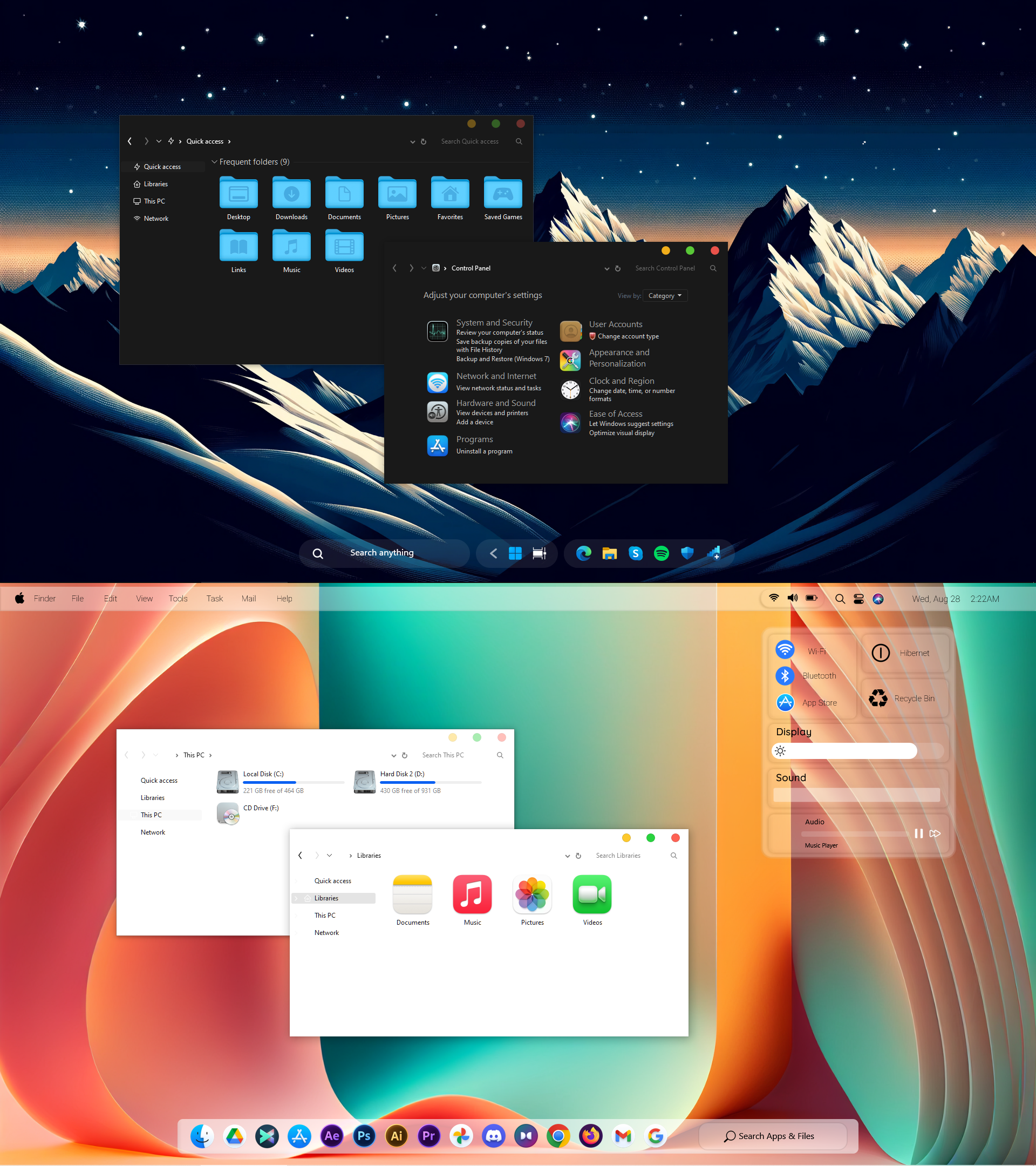
Want your Windows desktop to have an Apple-inspired appearance? The macOS Sequoia Theme is a great option to consider.
This theme brings a macOS-inspired visual direction to Windows, making it interesting for users who like Apple’s desktop design but prefer to keep using Windows.
There are also different editions available, including a dark version.
Why choose macOS Sequoia?
- macOS-inspired desktop appearance.
- An alternative visual style for Windows users.
- Available in standard and dark editions.
- A good option for users who enjoy Apple-inspired customization.
Download:
4. Windows 98 Theme – Best Retro Theme

For users who remember the classic Windows 98 experience, a Windows 98-inspired theme offers a nostalgic customization option.
Why choose Windows 98 Theme?
- Windows 98-inspired desktop design.
- A different look from the default Windows 11 interface.
- Suitable for users who prefer retro themes.
- Available for Windows 11.
Download: Windows 98 Theme for Windows 11
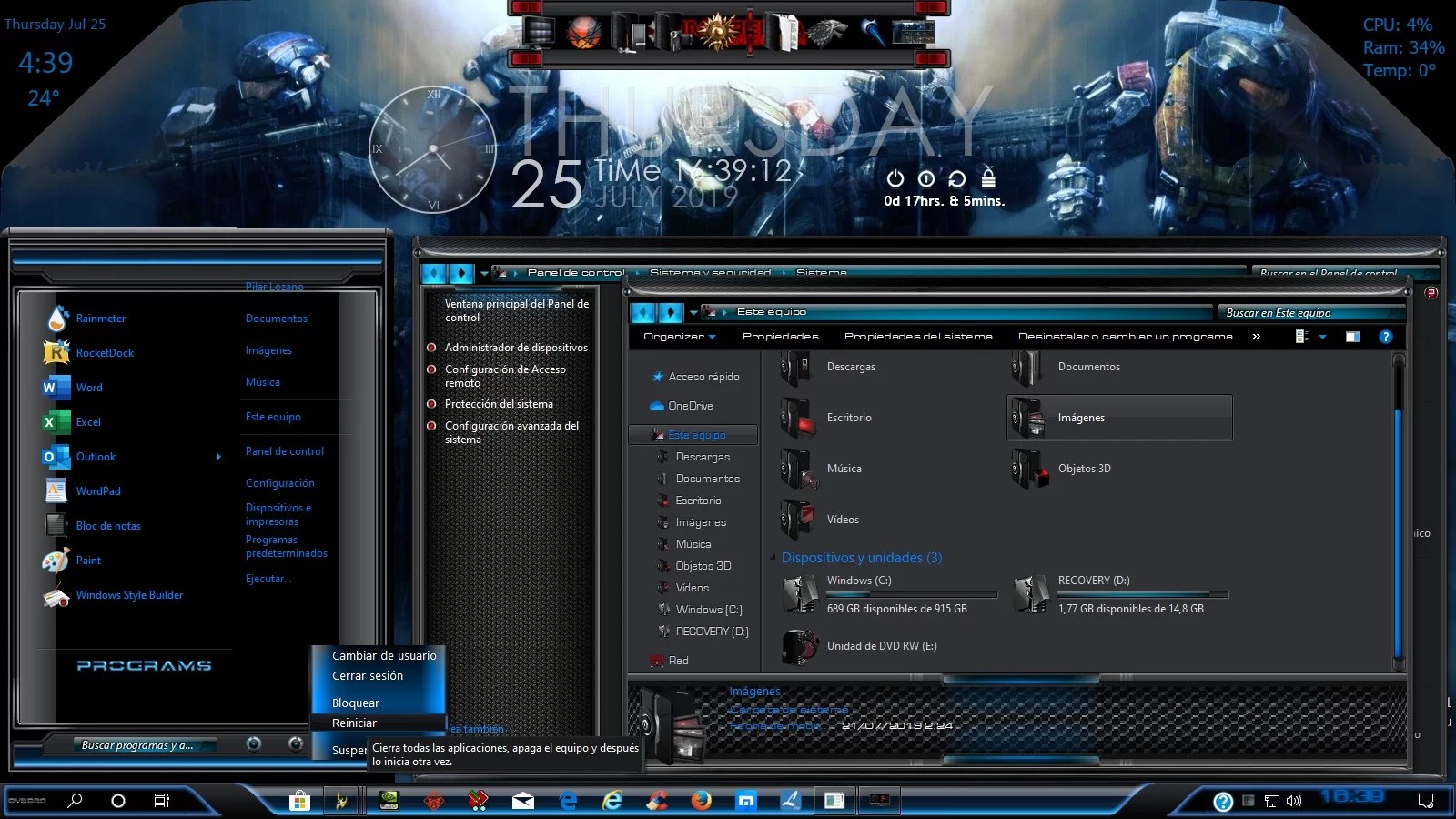
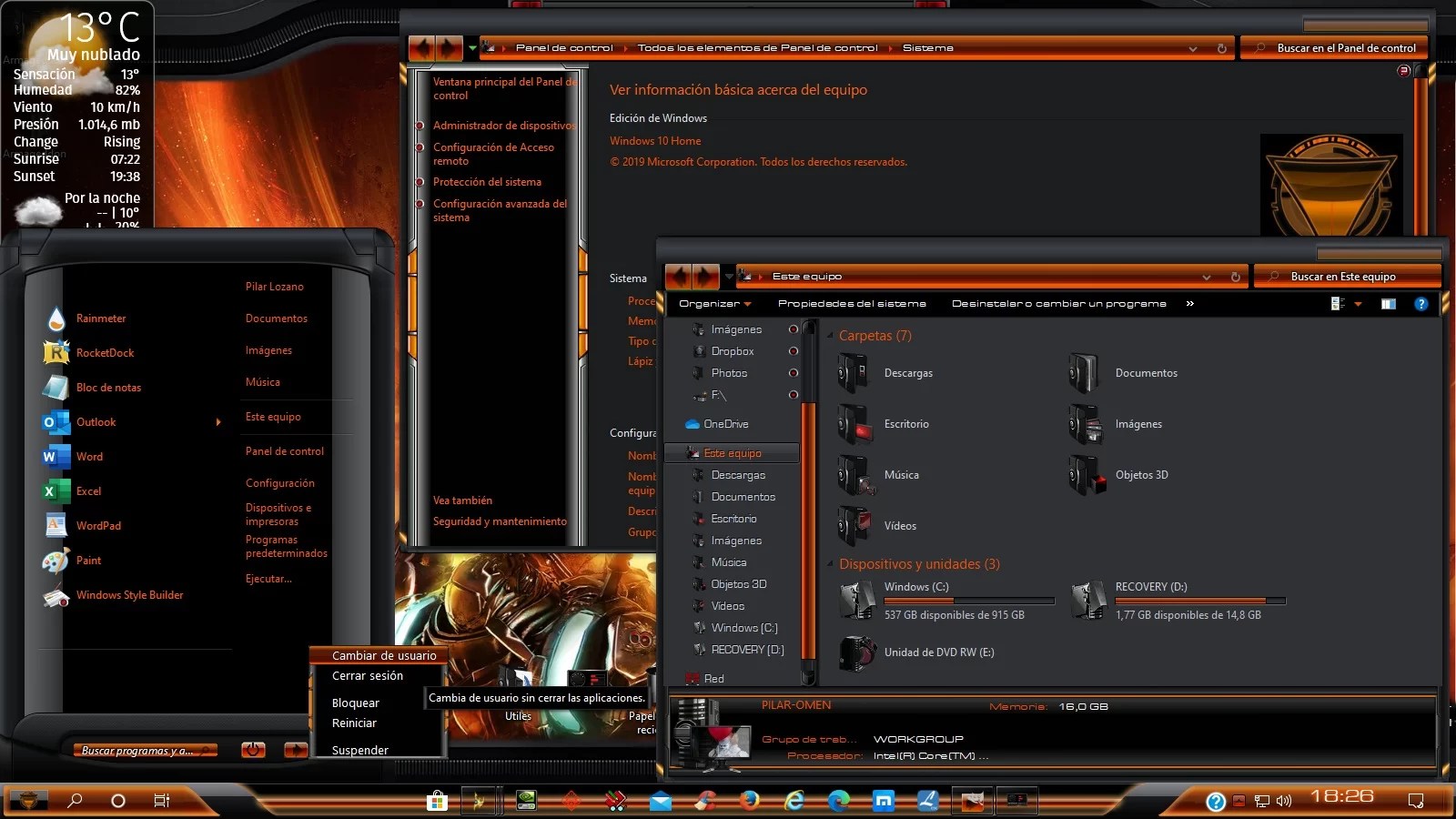
5. Alienware Theme – Best Gaming Theme for Windows 11

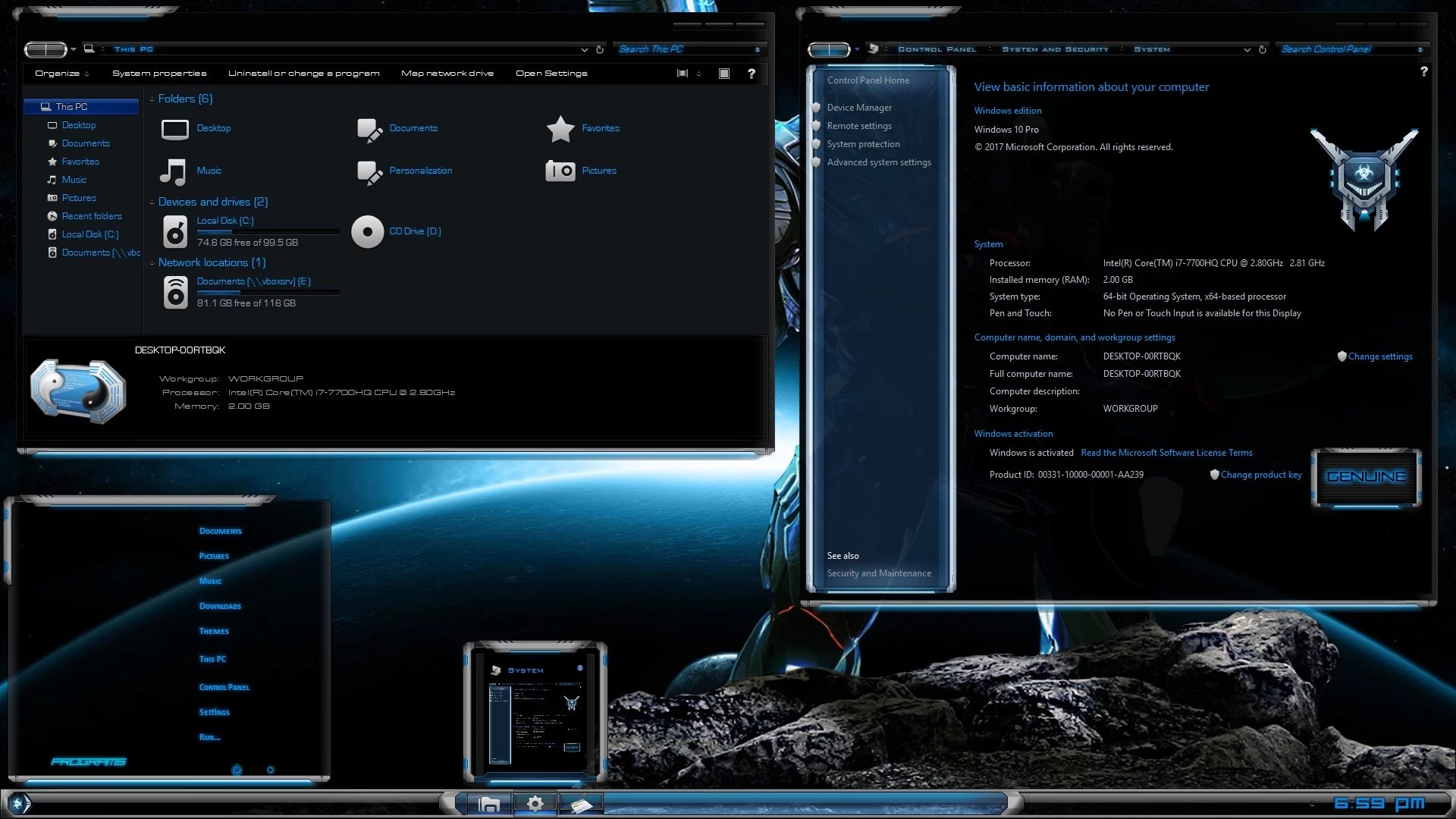
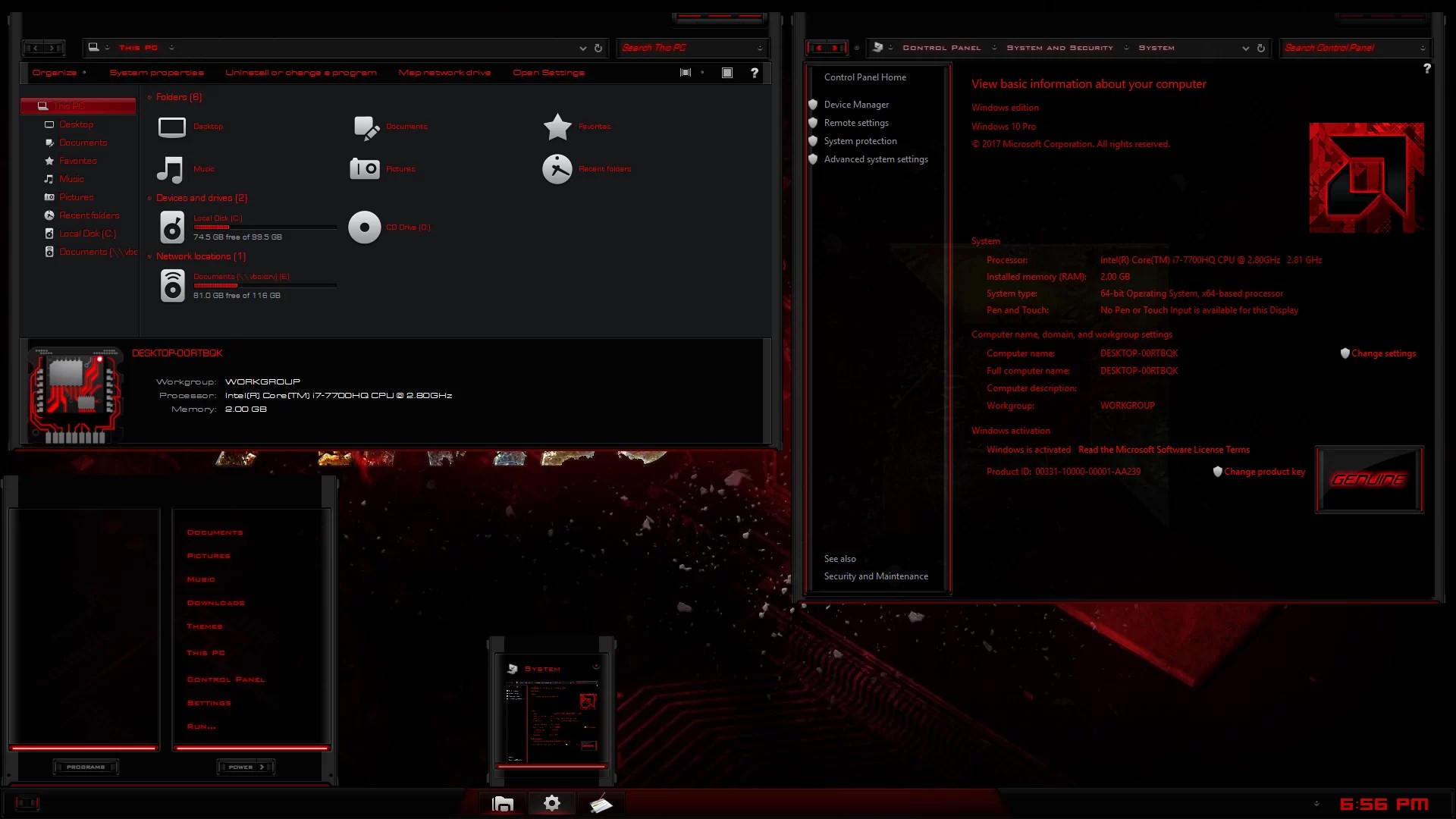
For gaming enthusiasts, Alienware Theme is one of the most recognizable customization styles.
Inspired by Alienware’s futuristic gaming aesthetic, this collection is suitable for users who want their desktop to have a more distinctive gaming appearance.
The Alienware collection includes several different designs, giving you multiple options to explore.
Why choose Alienware Theme?
- Futuristic gaming-inspired appearance.
- Multiple designs and color variations.
- A distinctive desktop customization style.
- Options for Windows 11 and Windows 10.
Explore: Alienware Theme
6. Windows 7 Theme – Best Classic Windows Theme

Not everyone prefers the modern Windows 11 interface. Some users still enjoy the classic appearance of Windows 7.
Windows 7 Theme is designed for users who want to bring some of that familiar visual style to a newer Windows desktop.
It is a great option for people who appreciate classic Windows aesthetics and want a different experience without switching operating systems.
Why choose Windows 7 Theme?
- Classic Windows-inspired appearance.
- A nostalgic desktop design.
- An alternative to the default Windows 11 style.
- Designed for Windows 11.
Download: Windows 7 Theme for Windows 11
7. Vista Theme – Best Windows Vista-Inspired Theme

Windows Vista introduced a distinctive visual identity that many users still remember, particularly its Aero-inspired appearance.
Vista Theme is an option for anyone who enjoys classic Windows design and wants to bring that nostalgic style to Windows 11.
Why choose Vista Theme?
- Windows Vista-inspired appearance.
- Classic desktop customization.
- A nostalgic alternative to modern Windows styling.
- Designed for Windows 11.
Download: Vista Theme
8. Steam OS Theme – Best Gaming-Inspired Desktop

If you enjoy the Steam gaming ecosystem and want a desktop inspired by gaming interfaces, Steam OS Theme is another option to explore.
It offers a gaming-inspired direction for Windows customization and is suitable for users who want something different from ordinary desktop themes.
Why choose Steam OS Theme?
- Gaming-inspired design.
- A distinctive desktop appearance.
- An alternative for gaming enthusiasts.
- Available for Windows 11 and Windows 10.
Download: Steam OS Theme
How to Install Windows 11 Themes
Installing a theme depends on the type of customization package you choose. Some themes use Windows’ built-in personalization settings, while advanced third-party Themes may require additional tools.
Before installing any third-party theme, check its individual installation instructions and supported Windows versions.
For Themes, follow these general recommendations:
- Check the theme’s product page and confirm that it supports your Windows version.
- Read the installation instructions provided with the package.
- Create a Windows System Restore Point before making advanced system changes.
- Download the theme from its official product page.
- Follow the package-specific installation instructions.
- Restart Windows if the instructions require it.
- Check the desktop appearance and confirm that everything works correctly.
Important: Different themes may use different installation methods. Do not assume that every Theme can be installed using the same procedure.
For additional instructions, see our Windows 11 Themes Installation Guide.
Things to Consider Before Installing a Windows 11 Theme
Before choosing a third-party theme, keep the following points in mind:
Windows compatibility: Always check the supported Windows versions and builds. Windows updates can affect third-party customization tools and visual styles.
Create a restore point: A System Restore Point provides a recovery option before making significant changes to Windows.
Choose the right theme type: Standard Windows themes, WindowBlinds themes, Rainmeter skins, and complete Themes are different types of customization. Check what each download actually includes.
Security: Keep Windows Security and other security protections enabled. Never disable antivirus protection or bypass a security warning just to install a theme. If a security product flags a download, stop and investigate the detection before proceeding.
Installation instructions: Read the instructions on the individual download page. Some packages require additional customization tools, while others provide a different installation method.
Frequently Asked Questions
What are the best themes for Windows 11?
Some interesting options include Ubuntu Theme, Windows XP Theme, macOS, Windows 98, Alienware, Windows 7, Vista, and Steam OS Theme. The best choice depends on whether you prefer modern, classic, Apple-inspired, or gaming-style customization.
Are Windows 11 themes free?
Windows 11 includes built-in themes, and additional themes are available through the Microsoft Store. Third-party customization packages can be free or paid, depending on the creator and product.
Can I make Windows 11 look like macOS?
Yes. macOS-inspired Themes can change several visual elements of the Windows desktop. Explore the macOS and iOS Theme Collection to find different designs.
Can I change Windows 11 icons and cursors?
Yes. Windows supports some built-in personalization options for mouse pointers and desktop icons. Third-party customization packages may provide additional icon and cursor designs.
Are third-party Windows 11 themes safe?
Safety depends on the individual package and its source. Download only from trusted sources, check the installation instructions, keep security protection enabled, and investigate any antivirus warning before running a file.
Can Windows updates break installed themes?
Yes. Some third-party visual styles and customization tools depend on Windows components that may change during updates. Always check compatibility information and the theme creator’s instructions after major Windows updates.
How do I uninstall a Windows 11 Theme?
Uninstallation depends on the package. Use the uninstall instructions provided with the specific Theme. If the desktop does not return to its normal appearance, consult the Themes Help & FAQ page before making additional changes.
Final Thoughts
Windows 11 offers plenty of customization possibilities, but you don’t have to keep the default desktop appearance.
Whether you prefer the modern look of Ubuntu, the blue design of Windows XP Theme, the Apple-inspired appearance of macOS, the futuristic Alienware style, or the nostalgic look of Windows 7 and Vista, there are many ways to make your desktop feel more personal.
Explore the Theme Collection to discover more themes, Themes, icons, and desktop customization options for Windows 11 and Windows 10.
Ads
 How to Customize Windows 11: Complete Desktop Customization Guide