Ads

Windows 11 has a modern design, but you don’t have to keep the default appearance. With its built-in personalization settings and third-party customization tools, you can transform almost every part of your desktop.
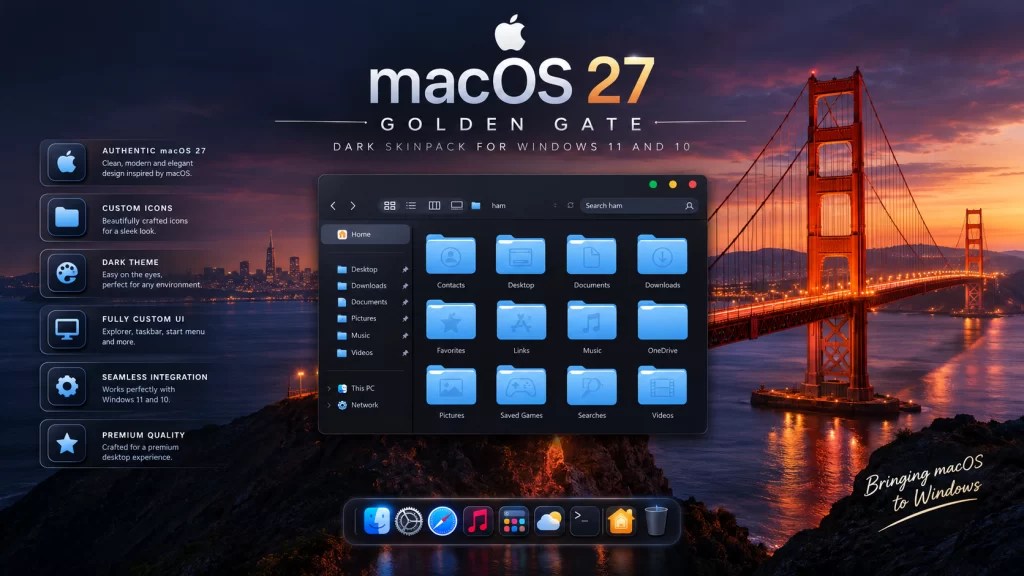
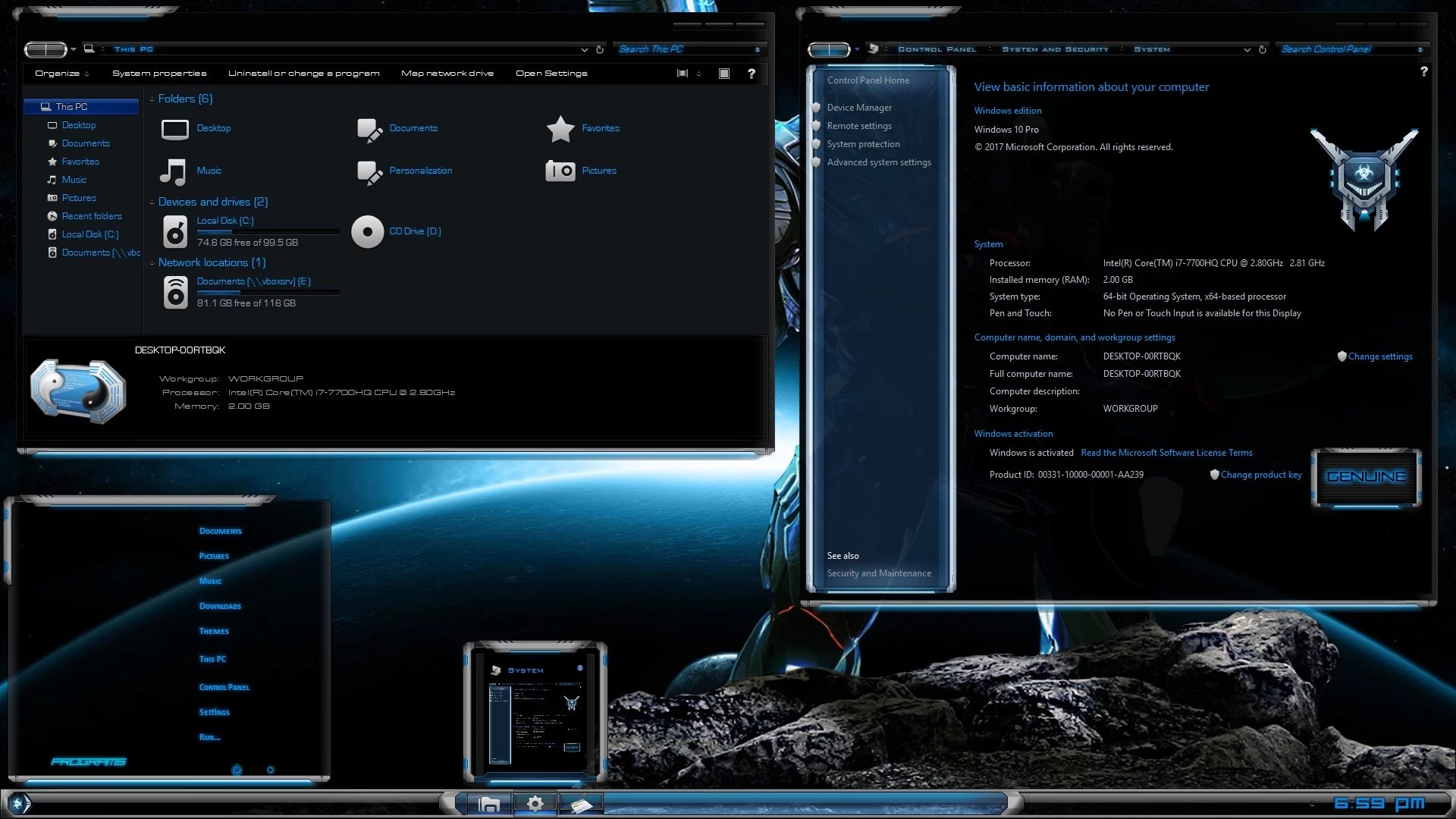
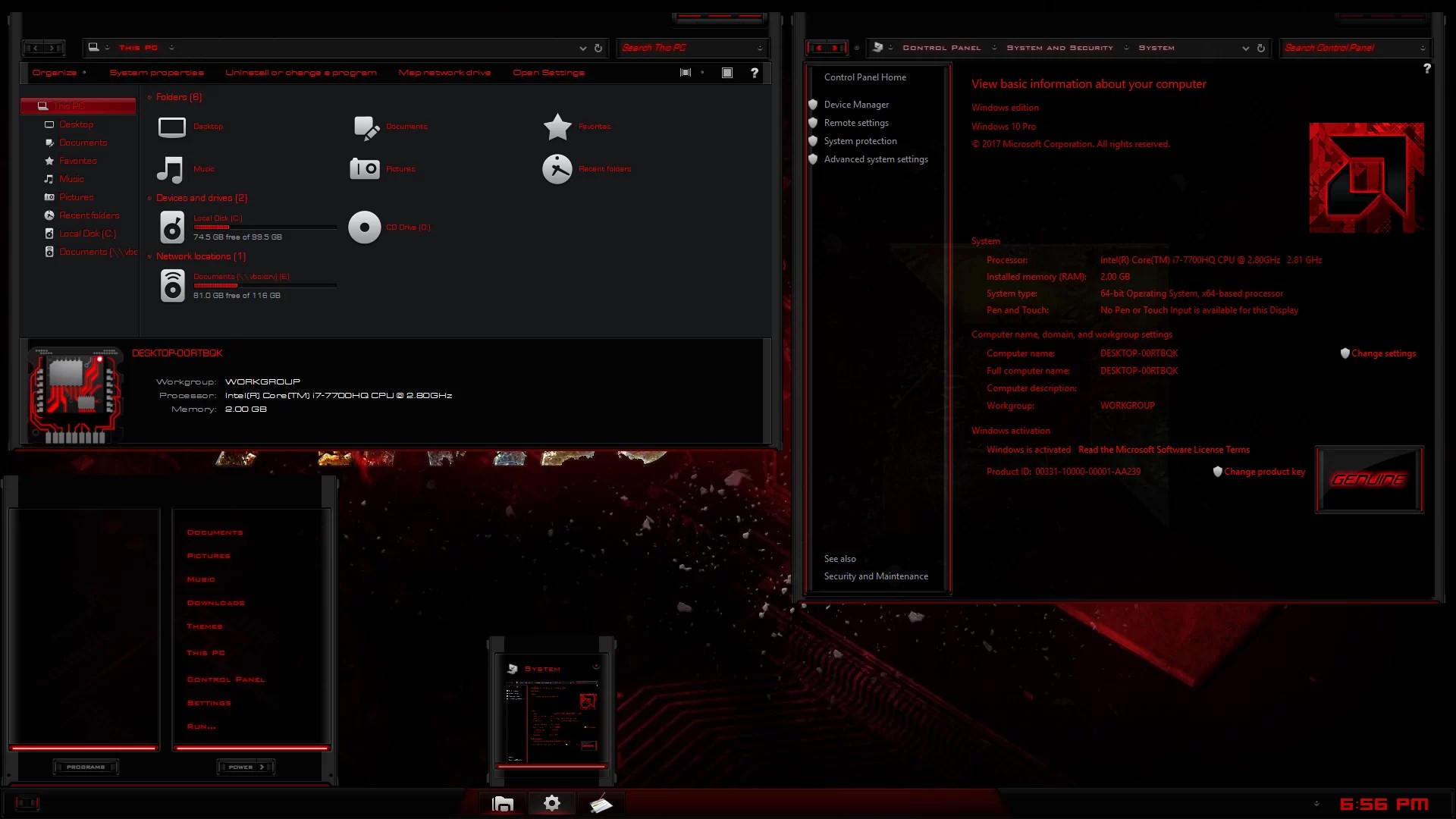
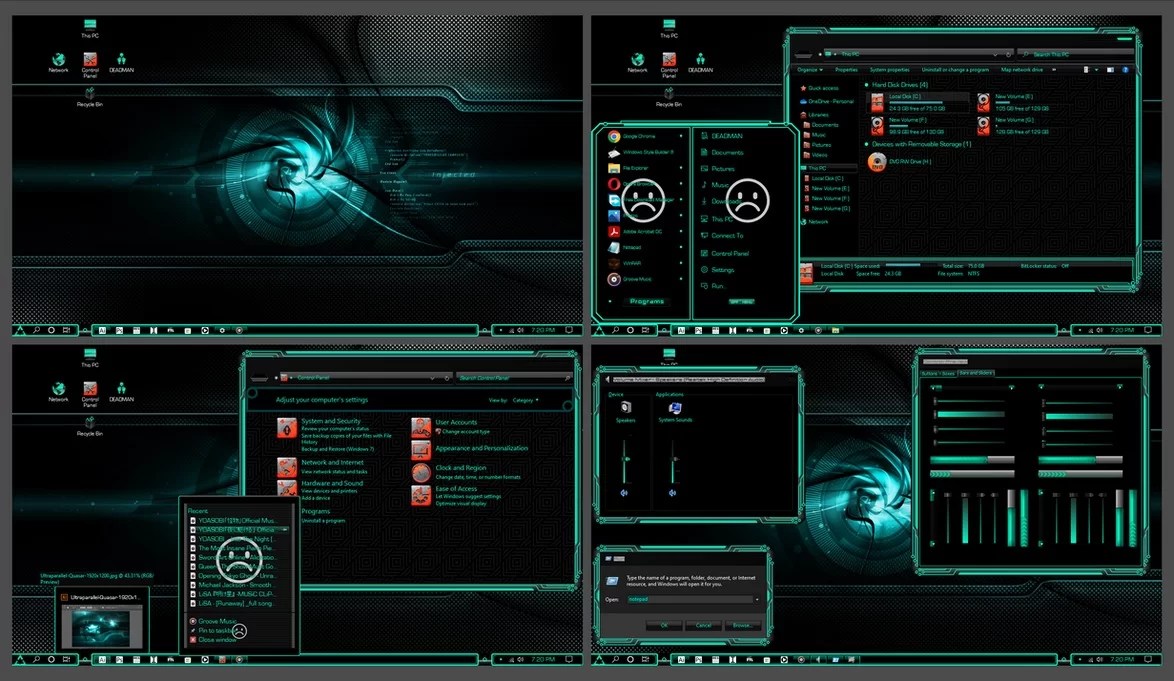
Whether you prefer a clean minimalist interface, a macOS-inspired desktop, a colorful gaming setup, or a futuristic transparent design, Windows 11 offers plenty of customization possibilities.
In this guide, we’ll show you how to customize Windows 11 step by step, including changing wallpapers, themes, icons, cursors, taskbar settings, Start menu layouts, sounds, and more.
1. Change Your Windows 11 Wallpaper
Changing your desktop wallpaper is one of the easiest ways to personalize Windows 11.
You can use your own photos, downloaded wallpapers, or built-in Windows backgrounds.
How to change your wallpaper:
- Right-click an empty area of your desktop.
- Select Personalize.
- Open Background.
- Choose Picture, Solid color, Slideshow, or Windows Spotlight.
- Select your preferred image or background.
You can also download high-resolution wallpapers to give your desktop a completely different appearance.
Tip: Choose a wallpaper that matches your desktop icons and overall theme. Dark wallpapers work particularly well with dark themes, while colorful backgrounds can make a minimalist desktop more interesting.
2. Change the Windows 11 Theme

Windows 11 includes built-in themes that can change your desktop background, colors, sounds, and mouse cursor settings.
How to change your theme:
- Open Settings.
- Select Personalization.
- Click Themes.
- Choose one of the available themes.
- Click the theme to apply it.
You can also customize individual theme elements, including the background, colors, sounds, and mouse pointer.
Install Third-Party Windows 11 Themes
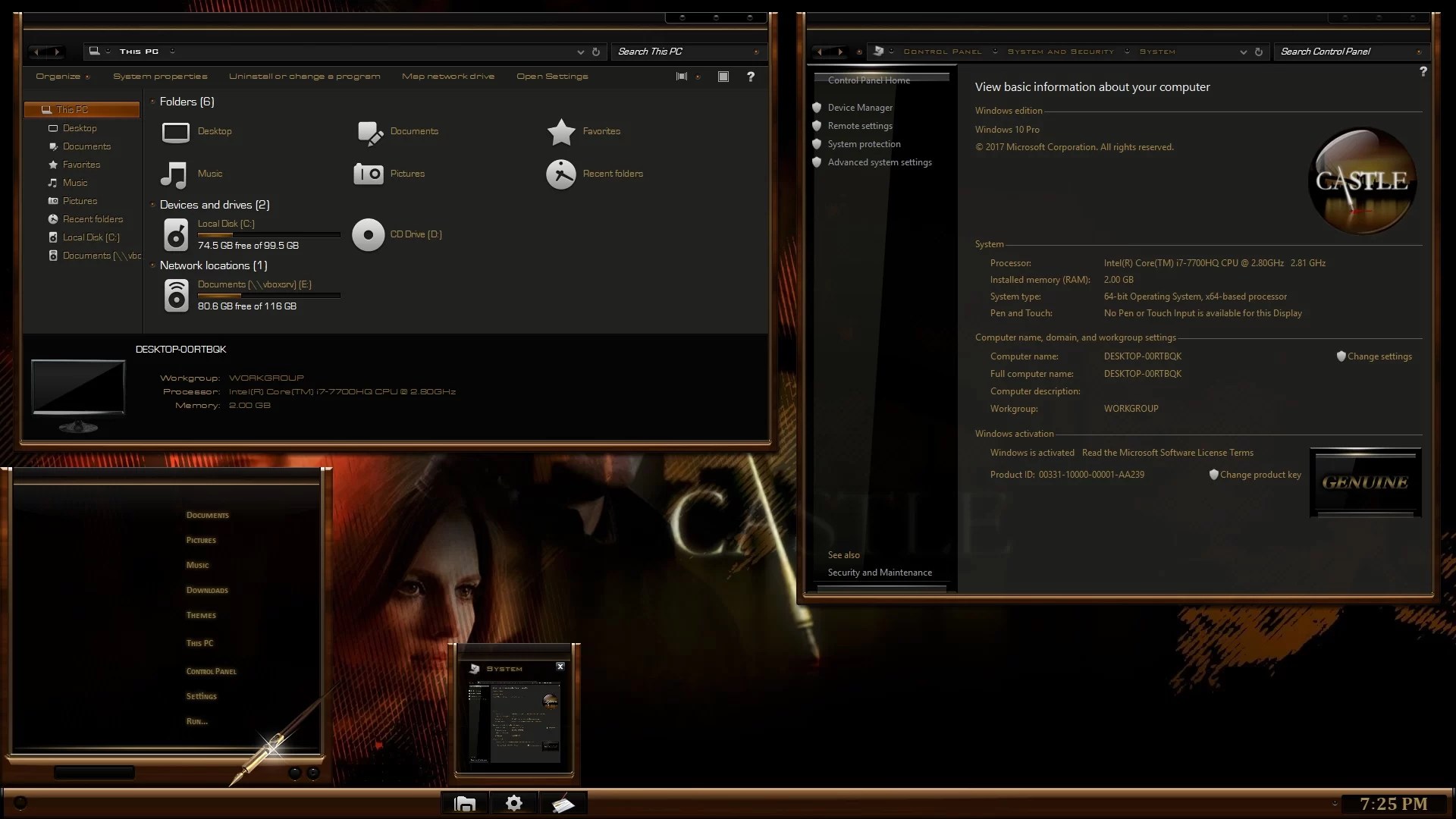
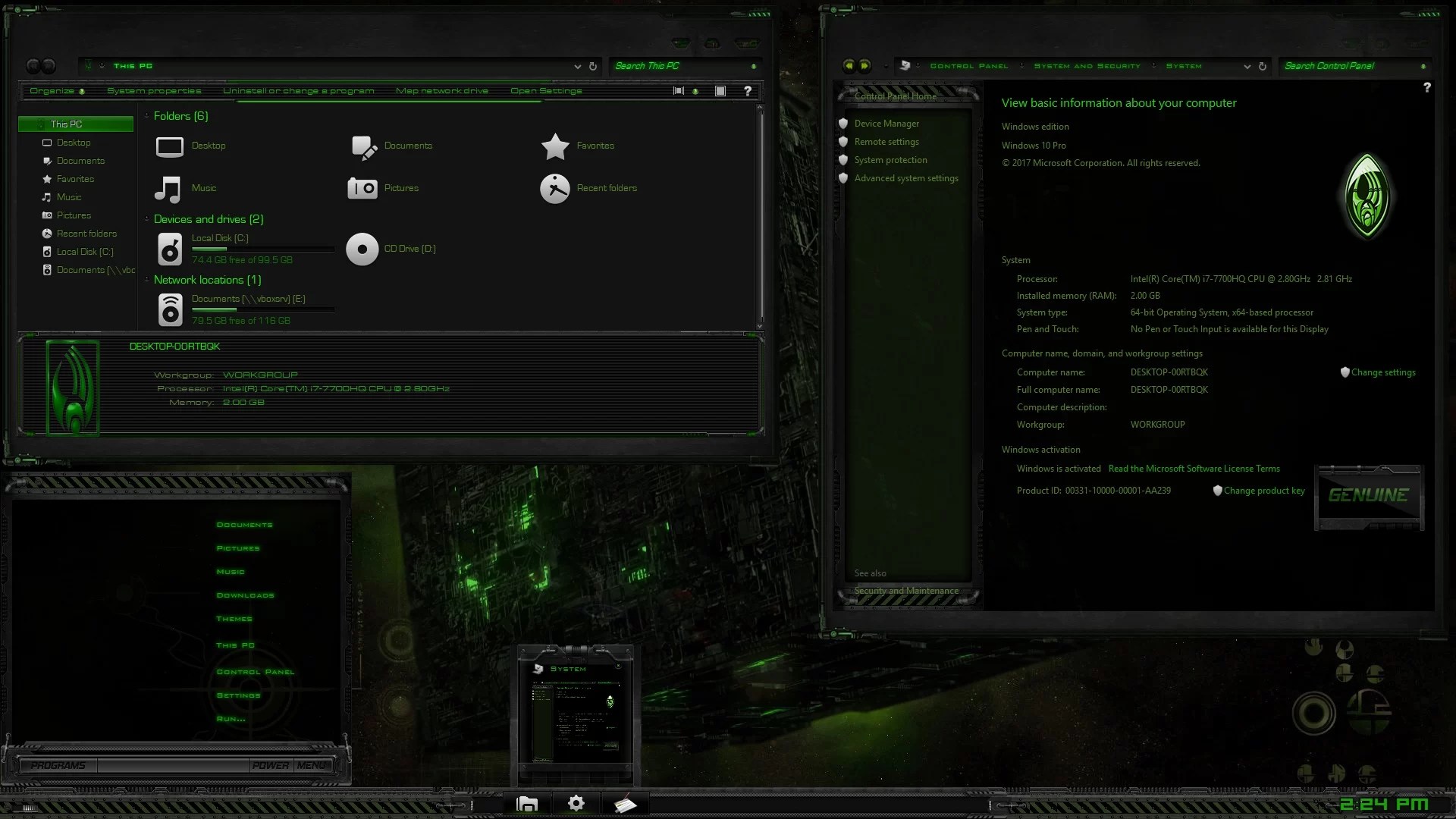
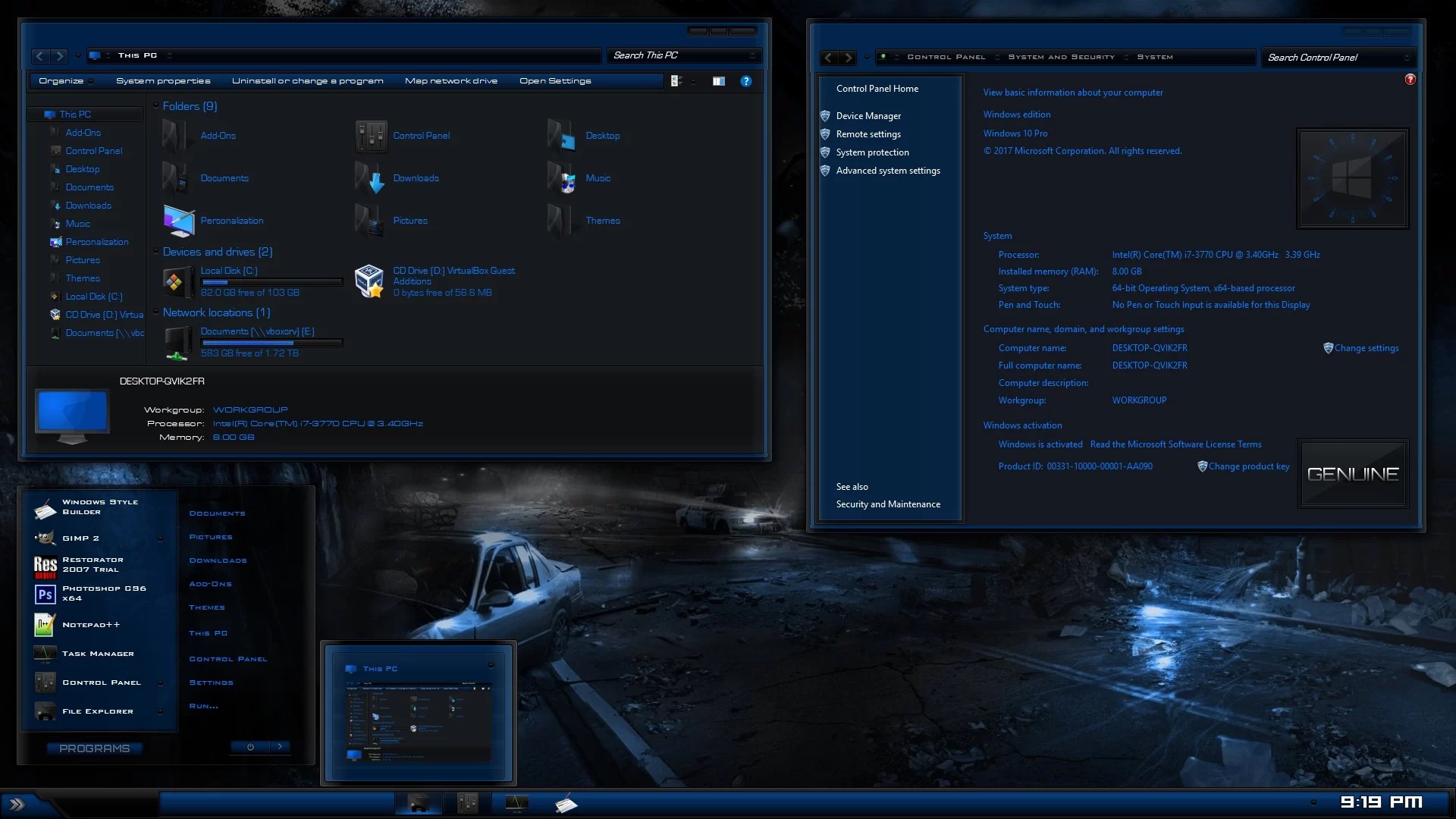
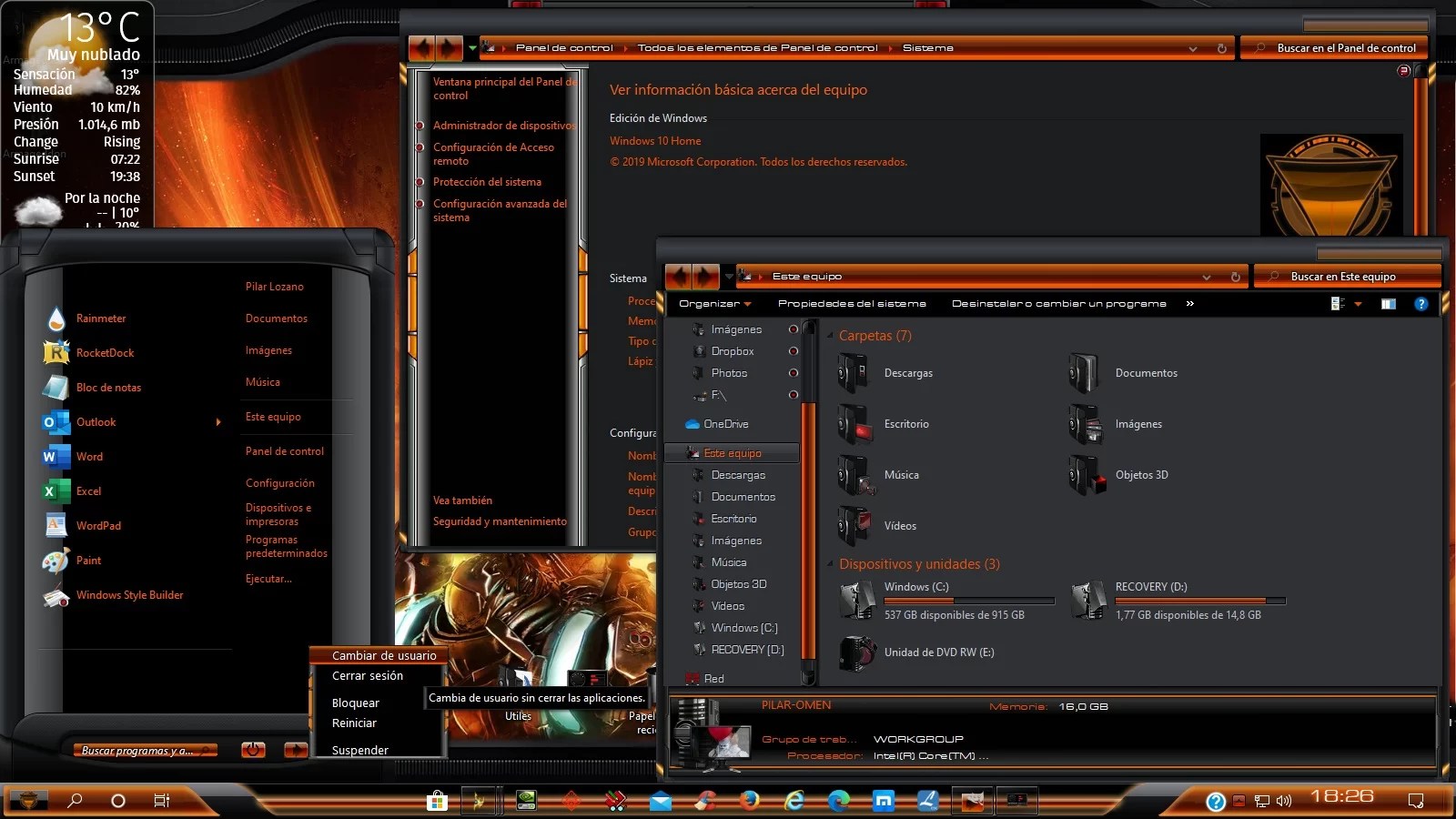
If the built-in themes aren’t enough, you can explore third-party Windows themes and SkinPacks.
These customization packages can provide different visual styles, including:
- macOS-inspired desktop designs.
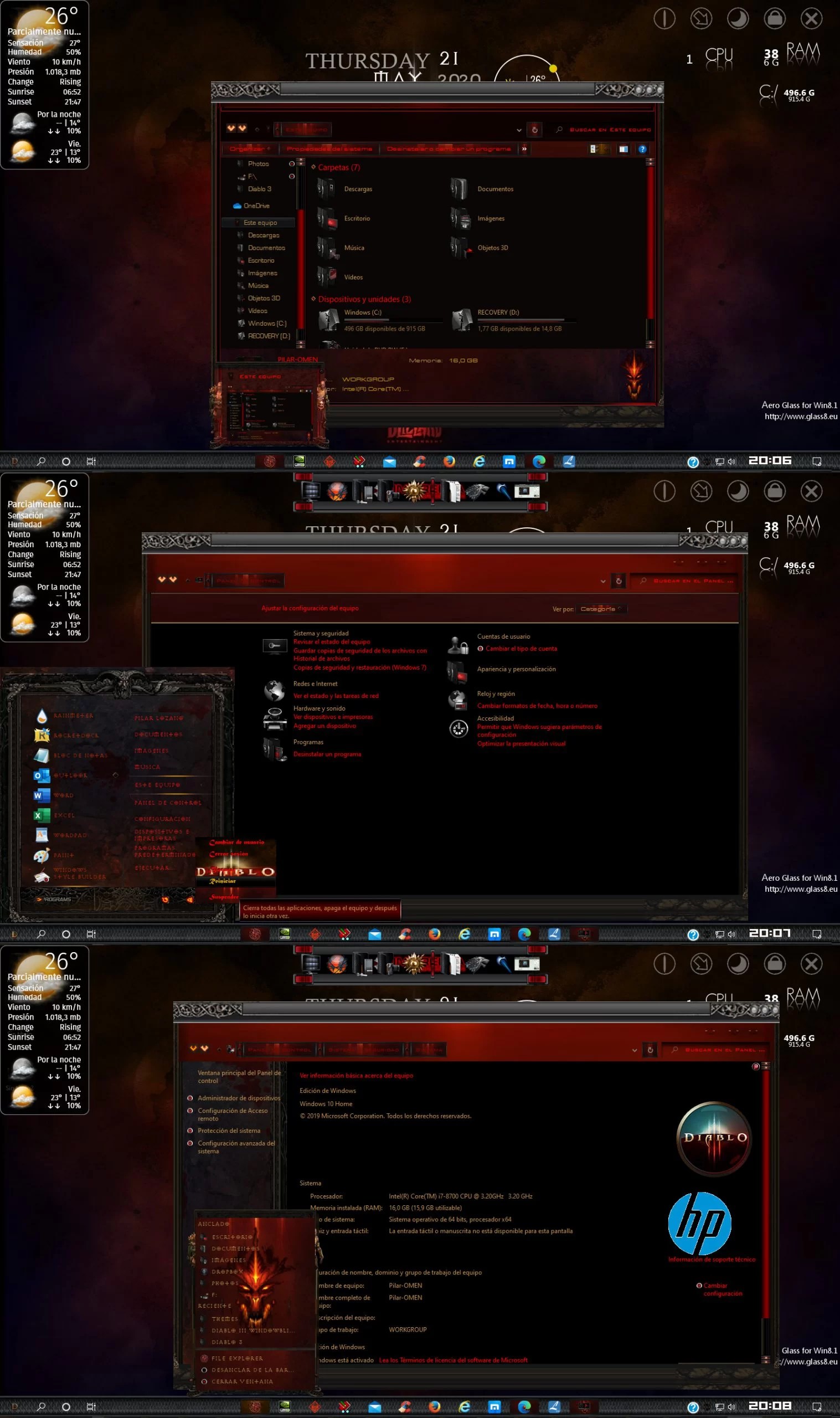
- Gaming themes.
- Dark and minimalist themes.
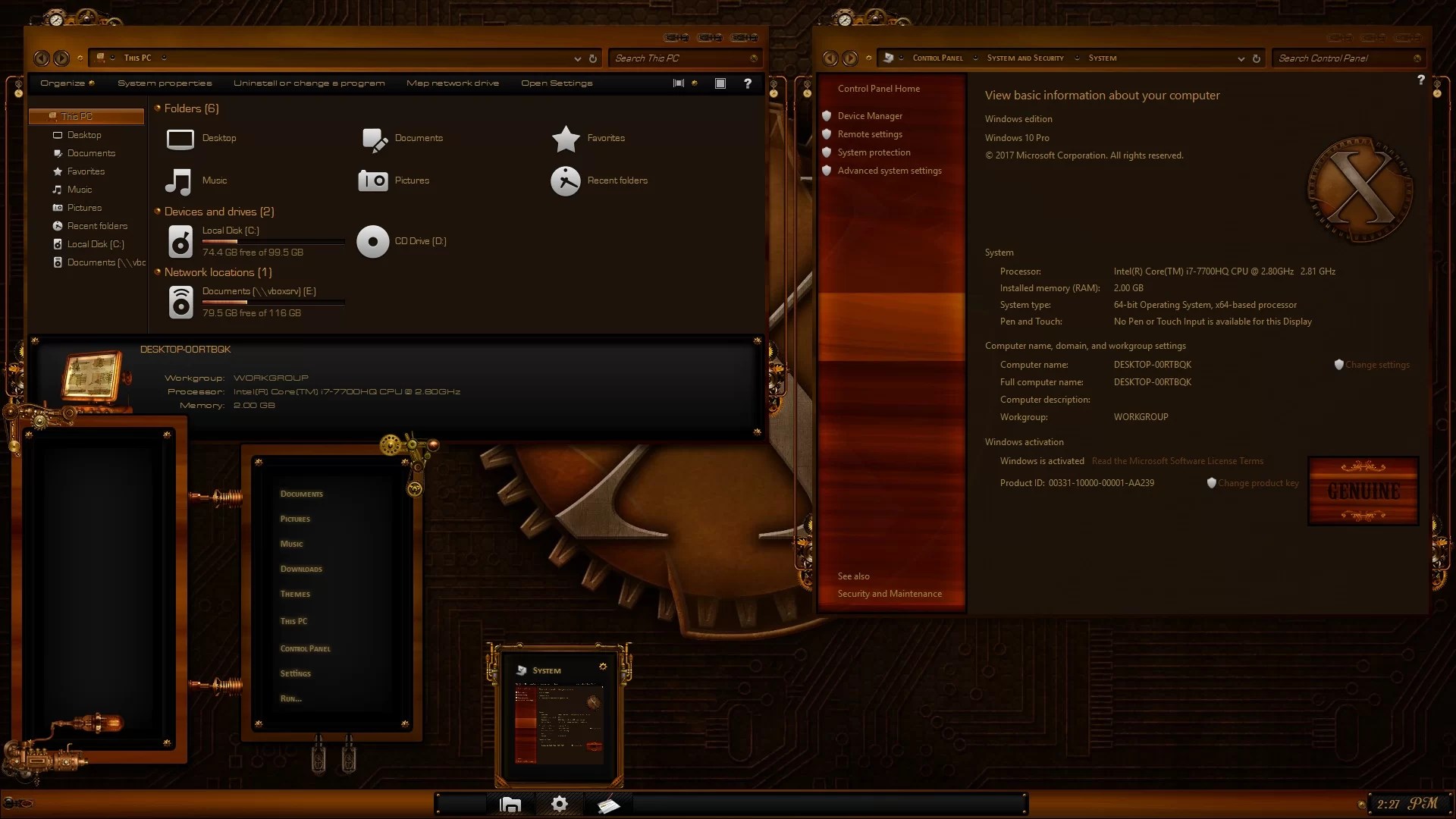
- Classic Windows appearances.
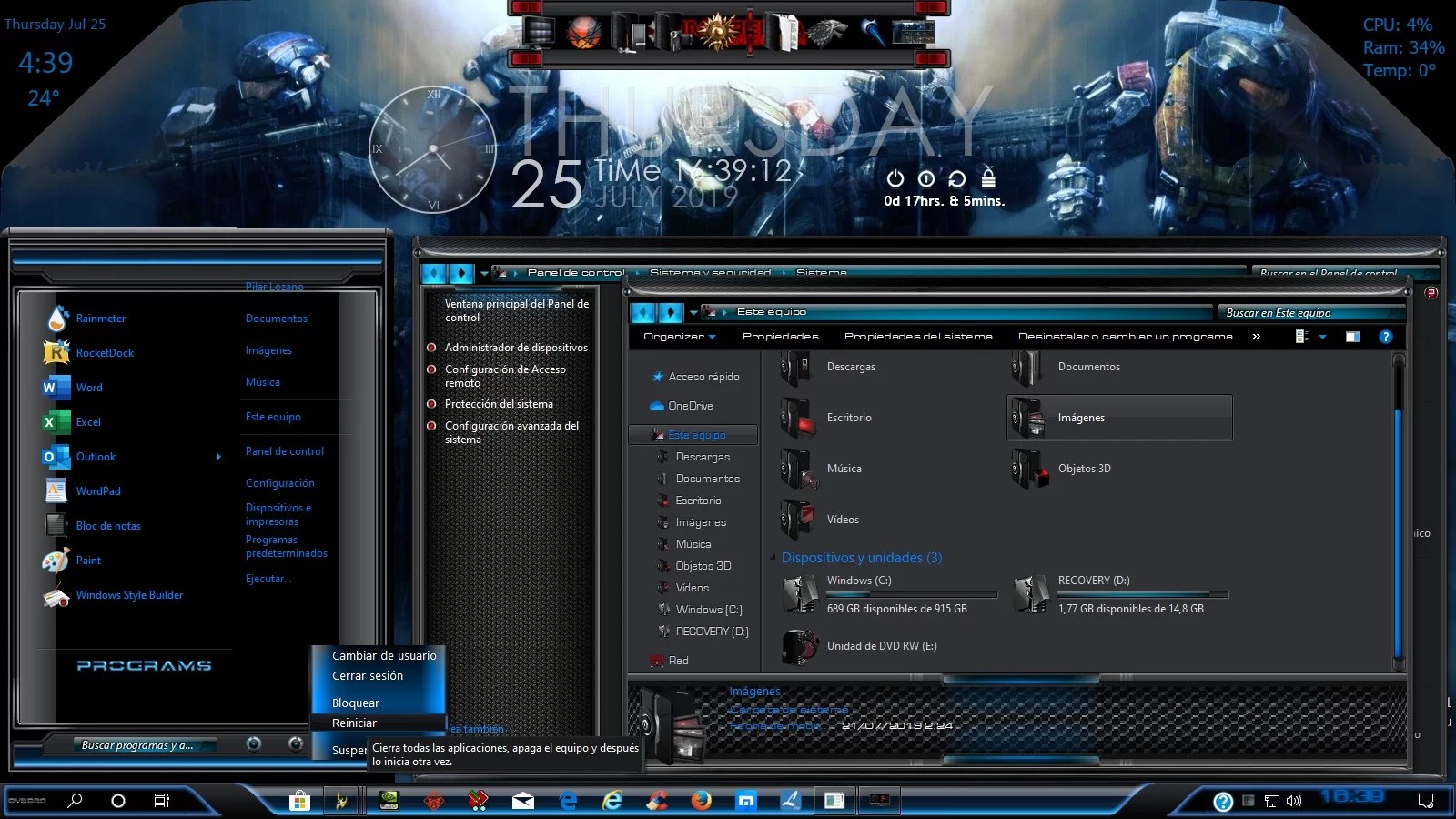
- Modern transparent and glass-inspired designs.
Explore our Download SkinPack Collection to discover more desktop customization options.
Important: Third-party themes use different installation methods. Always check compatibility and installation instructions on the individual product page.
3. Customize Windows 11 Icons
Changing desktop icons is another simple way to make Windows 11 look different.
You can replace standard desktop icons with custom designs or use icon packs for a more consistent appearance.
Change Desktop Icons
- Open Settings.
- Go to Personalization → Themes.
- Select Desktop icon settings.
- Choose the icon you want to change.
- Click Change Icon.
- Browse for an icon file and select it.
- Click Apply.
Windows allows you to customize several system desktop icons, including This PC, Recycle Bin, Network, and User’s Files.
Use Custom Icon Packs
For more extensive customization, you can use third-party icon packs.
Popular styles include:
- macOS-inspired icons.
- Windows 11-style icons.
- Minimalist folder icons.
- Colorful icons.
- Gaming icons.
- Dark folder designs.
Explore our Windows Icon Packs and discover different ways to customize your desktop.
4. Customize the Windows 11 Taskbar
The taskbar is one of the most visible parts of the Windows interface. Windows 11 provides several built-in options for changing its appearance and behavior.
How to customize the taskbar:
- Right-click the taskbar.
- Select Taskbar settings.
- Expand the available taskbar options.
- Choose which buttons and system icons you want to display.
- Adjust taskbar alignment and other available settings.
You can also open:
Settings → Personalization → Taskbar
Depending on your Windows 11 version, available options may include:
- Taskbar alignment.
- Search visibility.
- Task View button.
- Widgets button.
- System tray icons.
- Automatically hiding the taskbar.
Make the Taskbar More Minimal
If you prefer a clean desktop, consider hiding taskbar buttons you don’t use and enabling automatic taskbar hiding.
This creates more available screen space and gives your desktop a cleaner appearance.
5. Customize the Windows 11 Start Menu
The Start menu is another important part of the Windows 11 experience.
You can personalize its appearance by changing available layout options, organizing pinned applications, and removing shortcuts you don’t need.
How to customize the Start menu:
- Open Settings.
- Select Personalization.
- Click Start.
- Adjust the available layout and behavior options.
You can also:
- Pin your favorite applications.
- Unpin applications you don’t use.
- Rearrange pinned applications.
- Organize your Start menu around frequently used programs.
- Adjust available recommendations and recently used items.
For more advanced Start menu customization, third-party tools may provide additional layouts and features.
6. Change Windows 11 Mouse Cursors
The default Windows mouse pointer is simple, but you can replace it with custom cursor designs.
Windows supports changing pointer size, color, and individual cursor schemes.
How to change your mouse cursor:
- Open Settings.
- Select Bluetooth & devices.
- Click Mouse.
- Open Additional mouse settings.
- Select the Pointers tab.
- Choose a different pointer scheme or select individual cursors.
- Click Apply.
You can also download third-party cursor packs to give your mouse pointer a completely different appearance.
Popular cursor styles include:
- macOS cursors.
- Windows 11-inspired cursors.
- Minimalist cursors.
- Animated cursors.
- Gaming cursors.
7. Customize Windows 11 Colors and Transparency
Windows 11 allows you to change the system color mode, accent colors, and several transparency-related settings.
These options can help you create a desktop that matches your wallpaper and preferred visual style.
How to change Windows colors:
- Open Settings.
- Select Personalization.
- Click Colors.
- Choose Light, Dark, or Custom mode.
- Select your preferred accent color.
- Adjust transparency effects if available.
Enable Transparency Effects
Windows 11 includes transparency effects for supported interface elements.
To enable them:
- Open Settings.
- Go to Personalization → Colors.
- Turn on Transparency effects.
This can create a softer appearance for supported Windows interface elements.
For more advanced blur, acrylic, and Mica effects, you can explore third-party customization tools such as DWMBlurGlass and Mica For Everyone.
Check each tool’s compatibility and installation requirements before using it.
8. Add Desktop Widgets with Rainmeter
If you want more than ordinary desktop customization, Rainmeter is one of the most popular tools for Windows desktop personalization.
Rainmeter allows you to add customizable desktop elements called skins. These can display useful information and visual elements directly on your desktop.
Examples include:
- Digital and analog clocks.
- Weather information.
- System monitoring.
- CPU and RAM usage.
- Music players.
- Calendars.
- Application launchers.
- Custom desktop layouts.
How to Install Rainmeter Skins
- Download and install Rainmeter from its official website.
- Download a Rainmeter skin from a trusted source.
- Open the downloaded
.rmskinfile. - Follow the installation instructions.
- Open Rainmeter’s Manage window.
- Select the skin you want to use and load it.
You can move skins around the desktop, adjust their positions, and combine multiple widgets to create your own layout.
Explore our Rainmeter Skins Collection for more desktop designs.
9. Change Windows 11 Sounds
You can customize Windows system sounds to create a more personalized desktop experience.
Windows allows you to change sounds for events such as notifications, device connections, and system alerts.
How to change Windows sounds:
- Open Settings.
- Select System.
- Click Sound.
- Open More sound settings.
- Select the Sounds tab.
- Choose a program event.
- Select a sound from the available list or browse for a compatible audio file.
- Click Apply.
You can also save your custom sound configuration as a sound scheme.
10. Customize the Lock Screen
The Windows 11 lock screen can also be personalized.
You can change its background and select which applications display useful information.
How to customize the lock screen:
- Open Settings.
- Select Personalization.
- Click Lock screen.
- Choose Windows Spotlight, Picture, or Slideshow.
- Select an application for lock screen status if available.
A custom lock screen background can help match your desktop’s overall appearance.
11. Customize File Explorer
File Explorer is one of the applications you use most frequently in Windows 11.
You can personalize some of its built-in appearance and behavior without installing additional software.
Available options include:
- Changing the default folder view.
- Showing or hiding file extensions.
- Displaying hidden files.
- Adjusting navigation pane settings.
- Changing folder layouts.
- Customizing folder icons.
Change File Explorer Folder Options
- Open File Explorer.
- Click the three-dot menu.
- Select Options.
- Open the View tab.
- Adjust the available file and folder settings.
- Click Apply.
For additional customization, you can use compatible third-party tools and icon packs. Always check compatibility before modifying system components.
12. Use a Complete Windows 11 SkinPack
If you want to change several visual elements without customizing everything individually, a complete SkinPack may be a convenient option.
Depending on the package, a SkinPack can include coordinated visual elements such as:
- Desktop themes.
- Icons.
- Wallpapers.
- Cursors.
- Sounds.
- Other interface customization.
Different SkinPacks offer different features, so check the product description before downloading.
You can explore the Skinpacks Download Collection to find themes and customization packages for Windows 11 and Windows 10.
13. Best Tools for Advanced Windows 11 Customization
If you want to go beyond the built-in Windows personalization options, several third-party tools can help.
Here are some popular customization tools:
| Tool | Main Purpose |
|---|---|
| Rainmeter | Desktop widgets and skins |
| DWMBlurGlass | Advanced window effects |
| Mica For Everyone | Mica and acrylic effects |
| SecureUxTheme | Third-party visual styles |
| 7TSP GUI | System icon customization |
| Open-Shell | Alternative Start menu customization |
These tools have different purposes and compatibility requirements. Some modify or interact with Windows system components, so always read their documentation and create a restore point before making advanced changes.
You can find several of these tools and their installation guides on Skinpacks.
14. Tips for Creating a Beautiful Windows 11 Desktop
A good desktop design isn’t just about installing as many customization tools as possible. The best results usually come from choosing a consistent visual style.
Here are some useful tips:
Choose a consistent color scheme: Use matching wallpaper, icons, and accent colors.
Avoid too many desktop widgets: A few useful Rainmeter widgets can look better than filling the entire desktop with information.
Use matching icons: Consistent icon designs make your desktop look more organized.
Keep the taskbar clean: Remove unnecessary buttons and shortcuts.
Choose a suitable wallpaper: A simple background can make your icons and widgets easier to see.
Consider performance: Avoid running too many unnecessary background applications or widgets.
Create a restore point: Before installing tools that modify Windows, make sure you have a recovery option.
15. Important Security and Compatibility Tips
Before installing third-party themes or customization tools, remember these important recommendations:
- Download software from trusted sources.
- Check whether the package supports your Windows version and build.
- Read the installation instructions carefully.
- Create a System Restore Point before advanced modifications.
- Keep Windows Security and real-time protection enabled.
- Never disable antivirus protection or bypass security warnings just to install a theme.
- If a security tool detects a file, stop and investigate the detection before running it.
- Keep a copy of important files before making significant system changes.
Windows updates may also affect third-party customization tools. Check the developer’s documentation for compatibility information after major Windows updates.
Frequently Asked Questions
Can I customize Windows 11 without installing software?
Yes. Windows 11 includes many built-in personalization options. You can change wallpapers, themes, colors, taskbar settings, Start menu options, mouse cursors, sounds, and lock screen backgrounds without installing additional software.
How can I make Windows 11 look like macOS?
You can use a macOS-inspired SkinPack to change the visual appearance of your Windows desktop. These packages may include coordinated icons, wallpapers, cursors, and other visual elements. Explore our macOS and iOS SkinPack Collection.
How do I make Windows 11 look modern?
Start with a suitable wallpaper, a consistent accent color, a clean taskbar, and matching desktop icons. You can also explore modern SkinPacks and transparent interface effects.
Can I customize Windows 11 icons?
Yes. Windows allows you to change several desktop icons through Desktop icon settings. You can also use third-party icon packs for additional customization.
Is Rainmeter safe to use?
Rainmeter is a popular desktop customization platform. Download it from its official website and use skins from trusted creators. Individual skins may have different requirements, so check them before installation.
Do Windows 11 themes affect performance?
Most built-in themes have little impact on performance. However, third-party tools, animated backgrounds, and multiple desktop widgets may use additional system resources.
Can I undo Windows 11 customization?
Most built-in personalization changes can be reversed through Settings. Third-party tools and SkinPacks should be removed using their supplied uninstall instructions. A System Restore Point can also help recover from certain system changes.
What is the difference between a Windows theme and a SkinPack?
A standard Windows theme mainly changes supported personalization elements, such as wallpapers, colors, sounds, and cursors. A SkinPack may provide a more extensive collection of coordinated visual customizations. The exact features depend on the package.
Final Thoughts
Windows 11 provides plenty of ways to personalize your desktop, from simple wallpaper and color changes to advanced customization using Rainmeter, icon packs, visual styles, and complete SkinPacks.
You can create a clean minimalist workspace, an Apple-inspired desktop, a futuristic gaming setup, or a completely unique Windows experience.
Start with the built-in personalization settings, then explore additional tools and themes as you discover the style you like.
Visit Skinpacks.com to explore Windows 11 themes, SkinPacks, icon packs, Rainmeter skins, and more desktop customization resources.